Kituwa IT · Field guide
Find What Is Filling Your Linux Disk: df, Inodes, and du
Diagnose a full Linux disk without deleting anything. Compare capacity, inode use, and folder size with df -h, df -i, and du, and read mounts and permission errors correctly.
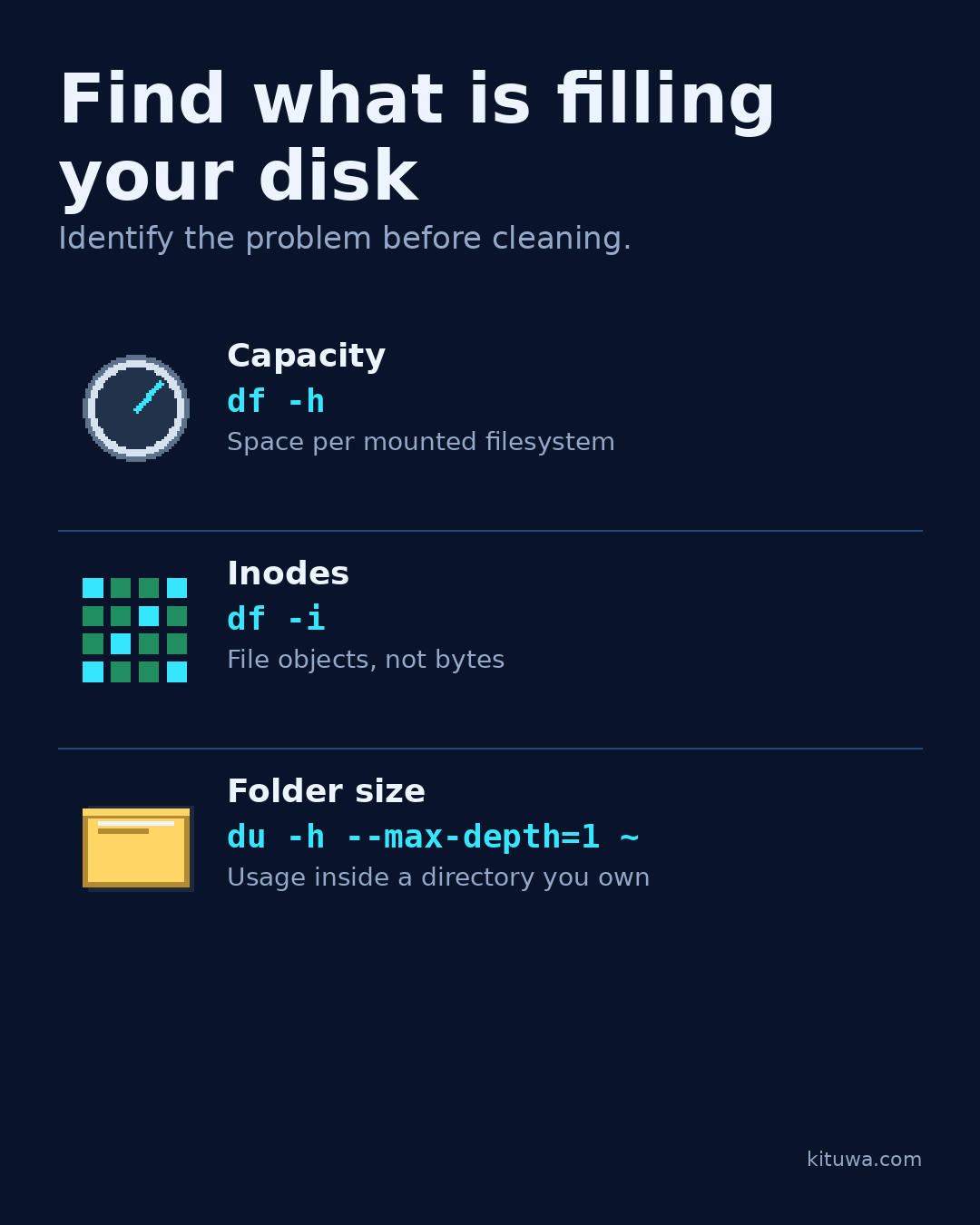
A full Linux disk is not one problem. It can be a filesystem with no free bytes, a filesystem with no free inodes, a single directory that grew too large, or a mount you did not realize was separate. The first job is to identify which one you have. Deleting files before that is guessing.
This guide uses three read-only tools: df -h, df -i, and du. It does not include deletion commands. Once you know what is full and why, you can make a deliberate decision about what is safe to remove, move, or archive.
The three questions
Ask these in order:
- Which filesystem is full?
df -hshows capacity and mount points. - Is it out of bytes or out of inodes?
df -ishows inode use. - Which directory is responsible?
dumeasures directory usage.
The answers can differ. A filesystem can have gigabytes free and still refuse a new file because it has no free inodes. A root filesystem can be full while /home has plenty of space because they are separate mounts. A directory can look large in a file manager but contain mostly sparse or hard-linked files.
1. Check capacity and mounts with df -h
Run:
df -h
The columns are filesystem, size, used, available, use percentage, and mount point. The mount point matters as much as the percentage. A full / is not the same as a full USB drive mounted at /media/you/USB, and a separate /home partition has its own capacity.
Look for:
Use%at or near 100% on the filesystem that matters.- A small
Availvalue even if the percentage looks moderate. - The mount point of the directory you are actually writing to.
If you want to check one path specifically:
df -h /path/to/directory
df reports the filesystem that contains that path. It does not tell you which file inside the directory is large.
A note on reserved space: some filesystems reserve blocks for root or system use. df may show less available space than the raw size suggests. That is normal, but it is another reason not to interpret the percentage without the available column.
2. Check inode use with df -i
Run:
df -i
The columns are filesystem, inodes, used inodes, free inodes, inode use percentage, and mount point.
An inode is a filesystem object that stores metadata about a file or directory. A filesystem creates a fixed number of inodes when it is made. Many small files can exhaust the inode table while plenty of bytes remain. This is common with mail queues, session files, caches made of tiny files, container layers, and old backup trees.
If df -i shows 100% inode use on the filesystem you are writing to, creating a new file can fail even though df -h shows free space. The fix is not “buy a bigger disk” by default; it is to find the directory producing the tiny files and decide what belongs there.
Inode counts and limits vary by filesystem and by how it was created. Do not assume every filesystem behaves the same way.
3. Measure directories with du
du reports disk usage by directory. Start inside a directory you own, not at /. A shallow first pass is easier to read:
du -h --max-depth=1 ~ | sort -h
--max-depth=1 limits the output to the directory and its immediate children. -h makes sizes human-readable. sort -h orders the results by size.
To keep the scan on one filesystem, add -x:
du -x -h --max-depth=1 /path/to/directory | sort -h
-x tells du not to cross into other mounted filesystems. That is useful when /home or a network mount is separate from /.
If you need more detail, increase the depth one level at a time:
du -x -h --max-depth=2 /path/to/directory | sort -h
Do not start with a full recursive scan of / on a busy machine unless you understand the time and I/O cost. Start narrow and expand.
Permission errors are information
du may print “Permission denied” for directories your user cannot read. That is normal. It does not mean the command is broken, and it does not mean you should immediately run the same command with sudo.
First, check the directory’s ownership and permissions:
ls -ld /path/to/directory
Then decide:
- If the directory belongs to your user, you should be able to read it.
- If it belongs to another service or user,
sudomay let you measure it, but you still need to understand what it is before changing anything. - If it is a system directory, read-only measurement is usually enough; do not delete files just because they are large.
Running sudo du can hide the real ownership question. Use it only when you need the measurement and you understand the directory.
A safe investigation sequence
- Run
df -hand note the full mount point. - Run
df -ion the same filesystem and note whether inodes are the limit. - Pick a directory you own on that filesystem.
- Run
du -h --max-depth=1on it, then go one level deeper where the largest usage appears. - Write down the path, the size, and what created it.
- Decide whether to move, archive, or remove data — and only then use a deletion command you understand.
If the full filesystem is /, start with likely data directories such as /var/log, /var/cache, container storage, or application data. If it is /home, start with your own home directory. Do not delete from /var or /usr just because the names look familiar.
What this guide deliberately does not do
It does not tell you to run rm -rf, clear caches, vacuum journals, or delete old kernels. Those actions have prerequisites and consequences. They also may not address the actual cause. Measure first; change second.
It also does not claim that a full disk is always caused by user files. Logs, package caches, containers, snapshots, and deleted-but-open files can all consume space. The three commands above tell you where to look; they do not replace judgment.
Quick reference
| Question | Command | What to read |
|---|---|---|
| Which filesystem is full? | df -h |
Mount point, Avail, Use% |
| Are inodes exhausted? | df -i |
IUse%, IFree |
| Which directory is large? | du -h --max-depth=1 ~ \| sort -h |
Largest immediate children |
| Stay on one filesystem | du -x -h --max-depth=1 /path \| sort -h |
No crossing into other mounts |
| Why permission denied? | ls -ld /path |
Owner, group, mode |
References
All links checked 2026-11-05.
df(1)— filesystem space and inode reporting: https://man7.org/linux/man-pages/man1/df.1.htmldu(1)— directory usage: https://man7.org/linux/man-pages/man1/du.1.html- GNU Coreutils —
dfinvocation: https://www.gnu.org/software/coreutils/manual/html_node/df-invocation.html - GNU Coreutils —
duinvocation: https://www.gnu.org/software/coreutils/manual/html_node/du-invocation.html
Need help interpreting the output?
If the numbers do not add up, or you are unsure which directory is safe to touch, Kituwa can help you read the evidence before anything is deleted. Start with the three read-only commands above; they are the cheapest diagnostic you can run.