Kituwa IT · Field guide
Turn an Old Laptop into a Home Server: A Safe First Build
Reuse a spare laptop as a home server: check the battery, cooling, storage, Ethernet and lid behavior, then start with one LAN-only service.
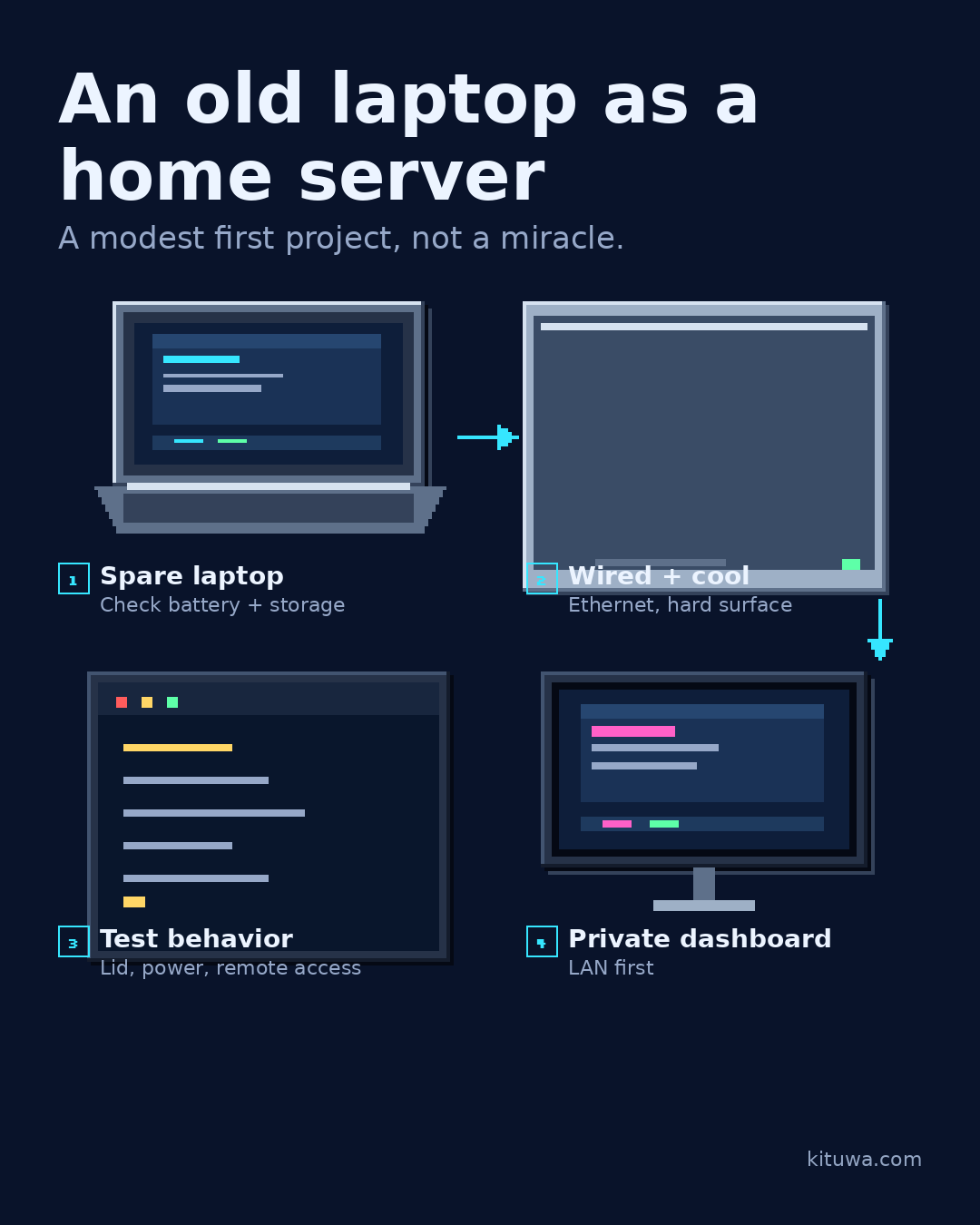
An old laptop can be a useful home server. It has a built-in screen and keyboard for setup, a battery that can ride out short power blips, and often enough CPU and RAM for a dashboard, a backup target, or a small file share. It is also a machine with constraints: limited cooling, limited drive bays, a battery that may be aging, and firmware that may not be designed for unattended operation.
This guide is a safe first build. It focuses on suitability checks, a wired network, one modest service, and the maintenance habits that keep the machine from becoming a liability. It is not a promise that every laptop should run 24/7.
1. Decide whether the laptop is suitable
Before installing anything, inspect the hardware.
Battery check
Look for swelling, deformation, a bulging trackpad, or a case that no longer sits flat. A swollen lithium battery is a safety issue. Stop using the machine, disconnect power, and dispose of the battery through a proper battery-recycling channel. Do not leave a swollen battery charging unattended.
If the battery is healthy, decide whether you want it installed. A battery can act as a small UPS, but it also adds heat and another aging component. Some people remove the battery and run on AC; only do that if the model supports it and you understand the firmware behavior.
Storage health
Check the drive before trusting it with data. On Linux, smartctl from the smartmontools package can read SMART health data when the drive and adapter expose it:
sudo smartctl -a /dev/sdX
Replace /dev/sdX with the correct whole device. Read the health summary and the error counters; do not treat one number as a complete diagnosis. If the drive is failing, replace it before building the server.
Cooling and placement
A laptop on a bed, carpet, or soft bag will overheat. Put it on a hard, ventilated surface. Keep the fan intake and exhaust clear. If the fan is noisy or the machine throttles under light load, clean the cooling system or choose a different machine.
Ports and network
Wired Ethernet is preferable for a server. It is less sensitive to interference, does not depend on Wi-Fi credentials, and is easier to keep stable across reboots. If the laptop has no Ethernet port, a USB Ethernet adapter can work, but test it before relying on it.
2. Pick one modest first job
Do not start with five services. Pick one job that solves a real annoyance:
- A private dashboard for links and service status.
- A backup target for one computer.
- A local file share for documents or photos.
- A small uptime monitor for your network.
A dashboard is usually the gentlest start. It is useful immediately, it does not need much storage, and it gives you a reason to learn the server's update and backup routine. Home Assistant is another popular first project, but it has a larger surface area and more integrations to maintain. Choose one and finish it before adding another.
3. Install a server operating system
Ubuntu Server is a common choice with long-term-support releases and extensive documentation. The official installation tutorial walks through the installer, storage, user account, and OpenSSH setup:
- Ubuntu Server installation tutorial: https://ubuntu.com/tutorials/install-ubuntu-server
- Ubuntu Server documentation: https://ubuntu.com/server/docs/installation
During installation:
- Use a clear hostname and a strong admin account.
- Install OpenSSH only if you need remote shell access.
- Read the storage screen carefully. If you do not understand an option, stop and ask; the installer can erase disks.
- Do not expose the machine to the public internet during setup.
If you prefer a different distribution, use its official server documentation. Do not paste partitioning or bootloader commands from an unrelated guide.
4. Make the network predictable
A server that changes IP addresses is annoying to use. The simplest fix is often a DHCP reservation on your router: find the laptop's MAC address and reserve a fixed address. The alternative is a static address configured on the server, but that requires understanding your network's gateway, subnet, and DNS settings.
Keep the first build on your trusted local network. Do not forward ports or publish the service to the internet until you understand authentication, updates, backups, and the firewall. Ubuntu's firewall documentation covers UFW if you want a host firewall:
- Ubuntu Server firewall: https://ubuntu.com/server/docs/security-firewall
5. Handle the lid and power behavior
A laptop may suspend when you close the lid. That is not useful for a server. systemd-logind documents the lid-switch settings in logind.conf:
systemd-logindconfiguration: https://www.freedesktop.org/software/systemd/man/latest/logind.conf.html
On many systems, the setting is in /etc/systemd/logind.conf:
HandleLidSwitch=ignore
HandleLidSwitchExternalPower=ignore
Read the documentation before changing these values, and test the result. Restarting systemd-logind can affect active sessions, so do it deliberately. If the laptop still suspends, check the desktop environment's power settings or the firmware.
Also check what happens after a power loss. Some firmware has a “restore on AC power” option; others do not. Test it with a non-critical workload before you depend on it.
6. Test storage, updates, and remote access
Before adding the first app:
- Confirm the drive is detected and healthy.
- Apply the supported updates and reboot if required.
- Confirm SSH works with a key, not just a password, if you enabled it.
- Confirm the machine comes back after a reboot.
- Confirm you can reach it from another device on the LAN.
Ubuntu's OpenSSH documentation covers key-based access and server configuration:
- Ubuntu Server OpenSSH: https://ubuntu.com/server/docs/service-openssh
Do not enable passwordless public SSH or broad port forwarding as a shortcut. Keep remote access on the LAN or behind a VPN until you have a specific reason and a plan.
7. Add one app and one backup
Install one service, then immediately write down:
- Where its data lives.
- How it is updated.
- How it is backed up.
- How you restore it.
If the service uses Docker, named volumes or bind mounts hold the persistent data. Back up the data, not just the container. If it uses a database, use the database's documented backup method. Test a restore into a separate location.
A backup on the same laptop is not enough. Keep a copy on a separate device, and check that the copy opens. Ubuntu's backup guidance is a good starting point:
- Ubuntu backups and restore planning: https://ubuntu.com/server/docs/how-to/backups
8. Maintain it like a server
A home server is not finished when the app loads. Put a small routine in place:
- Apply supported updates on a schedule.
- Reboot when required and confirm services return.
- Check disk space and SMART health.
- Check the backup job and restore one file periodically.
- Review logs for repeated errors, not just the last line.
If the laptop is noisy, hot, unstable, or has a damaged battery, stop treating it as a server. A used mini PC or a small tower may be a better long-term host. The point of the first build is to learn the pattern, not to force old hardware to do a job it cannot do safely.
Quick checklist
- ☐ Battery checked; no swelling or damage.
- ☐ Drive health checked.
- ☐ Hard, ventilated surface; fan clear.
- ☐ Wired Ethernet tested.
- ☐ One first job chosen.
- ☐ Server OS installed from official media.
- ☐ DHCP reservation or static address documented.
- ☐ Lid and power-loss behavior tested.
- ☐ Updates applied; reboot tested.
- ☐ SSH keys and LAN-only access verified.
- ☐ App data location documented.
- ☐ Backup copied off the host and restore tested.
References
All links checked 2026-11-05.
- Ubuntu Server installation tutorial: https://ubuntu.com/tutorials/install-ubuntu-server
- Ubuntu Server documentation: https://ubuntu.com/server/docs/installation
- Ubuntu Server firewall: https://ubuntu.com/server/docs/security-firewall
- Ubuntu Server OpenSSH: https://ubuntu.com/server/docs/service-openssh
- Ubuntu backups and restore planning: https://ubuntu.com/server/docs/how-to/backups
- systemd-logind lid behavior: https://www.freedesktop.org/software/systemd/man/latest/logind.conf.html
- smartmontools: https://www.smartmontools.org/
Need a hand scoping the first build?
If you want help checking the hardware or choosing the first service, Kituwa can review the plan with you. Start with the checklist above; it will make the conversation much more useful.