Kituwa IT · Field guide
RAID Is Not a Backup: Availability, Recovery, and What to Do Instead
RAID keeps an array running through some disk failures, but it cannot restore deleted files, ransomware, or site loss. Learn what RAID does, what it does not, and how to add a tested backup.
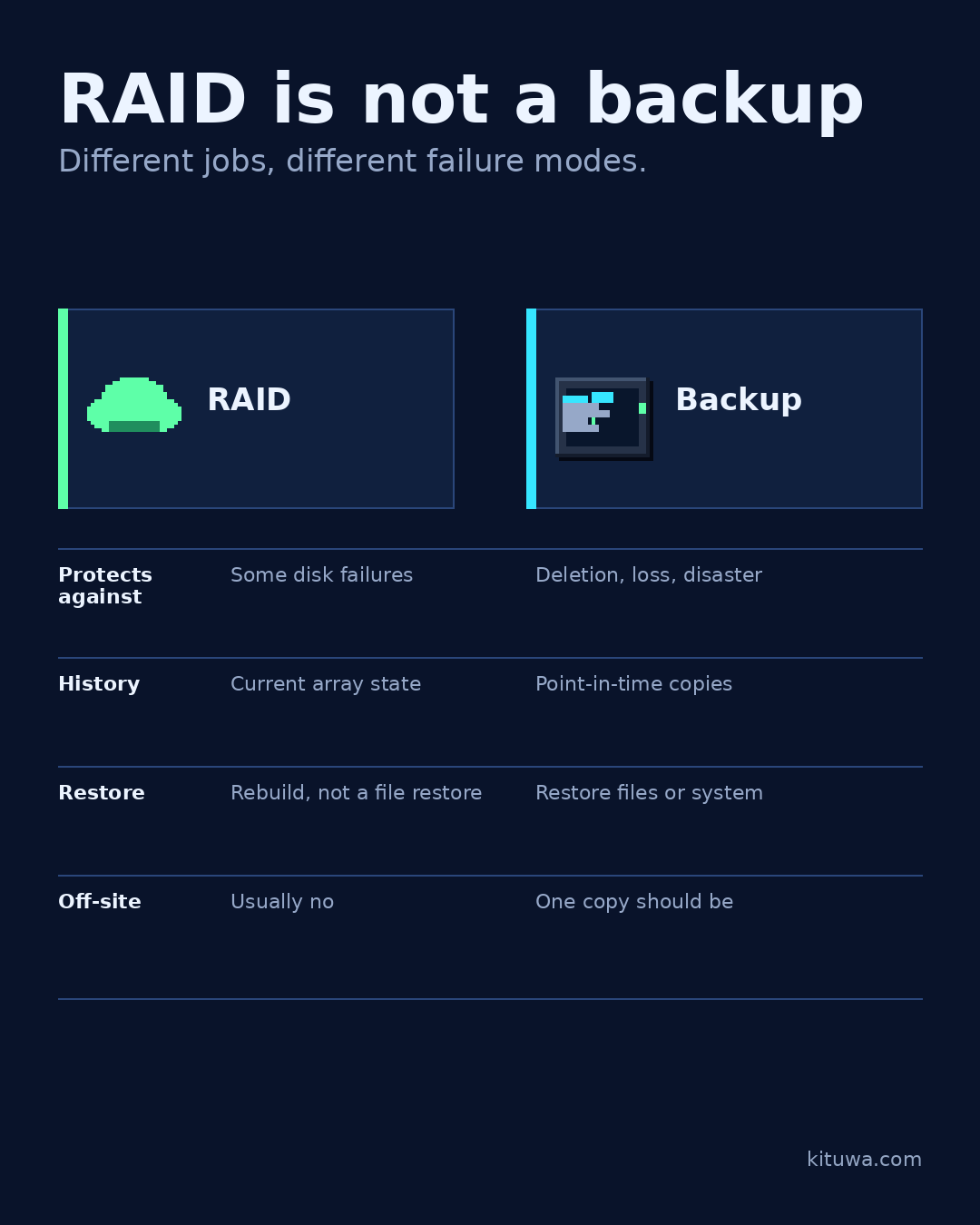
RAID is a storage technique that combines multiple disks into one logical device. It can keep a system running when a disk fails, and it can improve read performance in some configurations. Those are useful properties. They are not the same as a backup.
A backup is a separate copy of data that you can restore after deletion, corruption, ransomware, a bad update, a fire, or a failed migration. RAID is about availability; backup is about recovery. Confusing the two is how people lose data while their disks are still “healthy.”
What RAID can do
RAID can provide redundancy or performance depending on the level:
- RAID 0 stripes data across disks for performance. It has no redundancy; one disk failure can lose the array.
- RAID 1 mirrors data across two or more disks. It can survive some disk failures, depending on how many mirrors remain.
- RAID 5 uses parity across at least three disks. It can survive one disk failure in a healthy array.
- RAID 6 uses dual parity and can survive two disk failures in a healthy array.
- RAID 10 combines mirroring and striping, often with good performance and redundancy, at the cost of usable capacity.
The exact behavior depends on the implementation, the number of disks, the controller, and the array state. Do not assume every RAID layout behaves the same way.
What RAID cannot do
RAID does not protect against:
- Accidental deletion. If you delete a file, the array mirrors or writes the deletion.
- Ransomware or malicious changes. The array does not keep a historical copy.
- Filesystem corruption or a bad write. The redundancy may preserve the damaged state.
- A bad controller, cable, or firmware bug. A single logical failure domain can affect every disk.
- Fire, theft, flood, or power damage. The disks are usually in the same place.
- A botched rebuild. Rebuilds put stress on remaining disks and can fail.
RAID can keep a service online while you replace a disk. It cannot take you back to yesterday.
Rebuild is not restore
When a disk fails, a RAID array may rebuild redundancy onto a replacement disk. That process is not a file-level restore. It reconstructs the array state from the surviving disks and parity. If the data was already wrong, deleted, or encrypted by malware, the rebuild preserves that state.
A rebuild can also take hours or days, depending on disk size and load. During that window, the array may be more vulnerable. Do not treat “the rebuild completed” as proof that your data is recoverable.
Read-only health checks
On Linux software RAID, these commands are read-only and useful for understanding the array:
cat /proc/mdstat
sudo mdadm --detail /dev/mdX
Replace /dev/mdX with the array device. mdstat shows the array state and member disks; mdadm --detail shows the RAID level, state, and device roles. Read the output carefully. Do not run repair, grow, or remove commands until you understand the array and have a backup.
What a backup looks like
A backup is a separate copy with a restore path. A practical plan includes:
- A separate copy on a different device from the working array.
- A second copy on a different medium or location.
- An off-site copy for fire, theft, or site loss.
- A schedule that matches how much data you can afford to lose.
- A restore test with a real file, into a new destination.
- Encryption and key management if the backup leaves your control.
The 3-2-1 rule is a starting point: three copies, two media types, one off-site. It is not a guarantee; you still need to test restores and protect the backup from the same threats.
RAID plus backup
RAID and backup solve different problems, and they work well together:
- RAID keeps the service available through some disk failures.
- Backup lets you recover from deletion, corruption, ransomware, and site loss.
- A spare disk and a documented replacement procedure reduce downtime.
- A tested restore procedure reduces panic.
If you have RAID but no backup, you have availability without recovery. If you have a backup but no RAID, you may have more downtime but you can still recover. Most important data deserves both, plus an off-site copy.
A short checklist
- ☐ I know which RAID level I am running and what it can survive.
- ☐ I know how to read the array state without changing it.
- ☐ I have a spare disk or a replacement plan.
- ☐ I have a separate backup, not just a mirror.
- ☐ One backup copy is off-site or offline.
- ☐ I have tested a restore of a real file.
- ☐ I have documented the rebuild and restore procedures.
References
All links checked 2026-11-05.
- Linux kernel — software RAID (md): https://docs.kernel.org/admin-guide/md.html
mdadm(8)manual: https://man7.org/linux/man-pages/man8/mdadm.8.html- Ubuntu — backups and restore planning: https://ubuntu.com/server/docs/how-to/backups
Need a second opinion on the array?
If you are unsure what your RAID level can survive, or whether your backup is actually restorable, Kituwa can review the setup with you. Start with the read-only health checks and the checklist above.