Kituwa IT · Field guide
Check containers without changing them
Check containers without changing them. docker compose ps shows the project's services, state, and ports. Practical checks and official references.
Check containers without changing them.
This guide expands the Facebook post into a practical workflow for beginners, home-lab users, and small-business owners who want to understand the trade-offs before changing a working system.
What this guide covers
- Check containers without changing them
- Status, logs, resources.
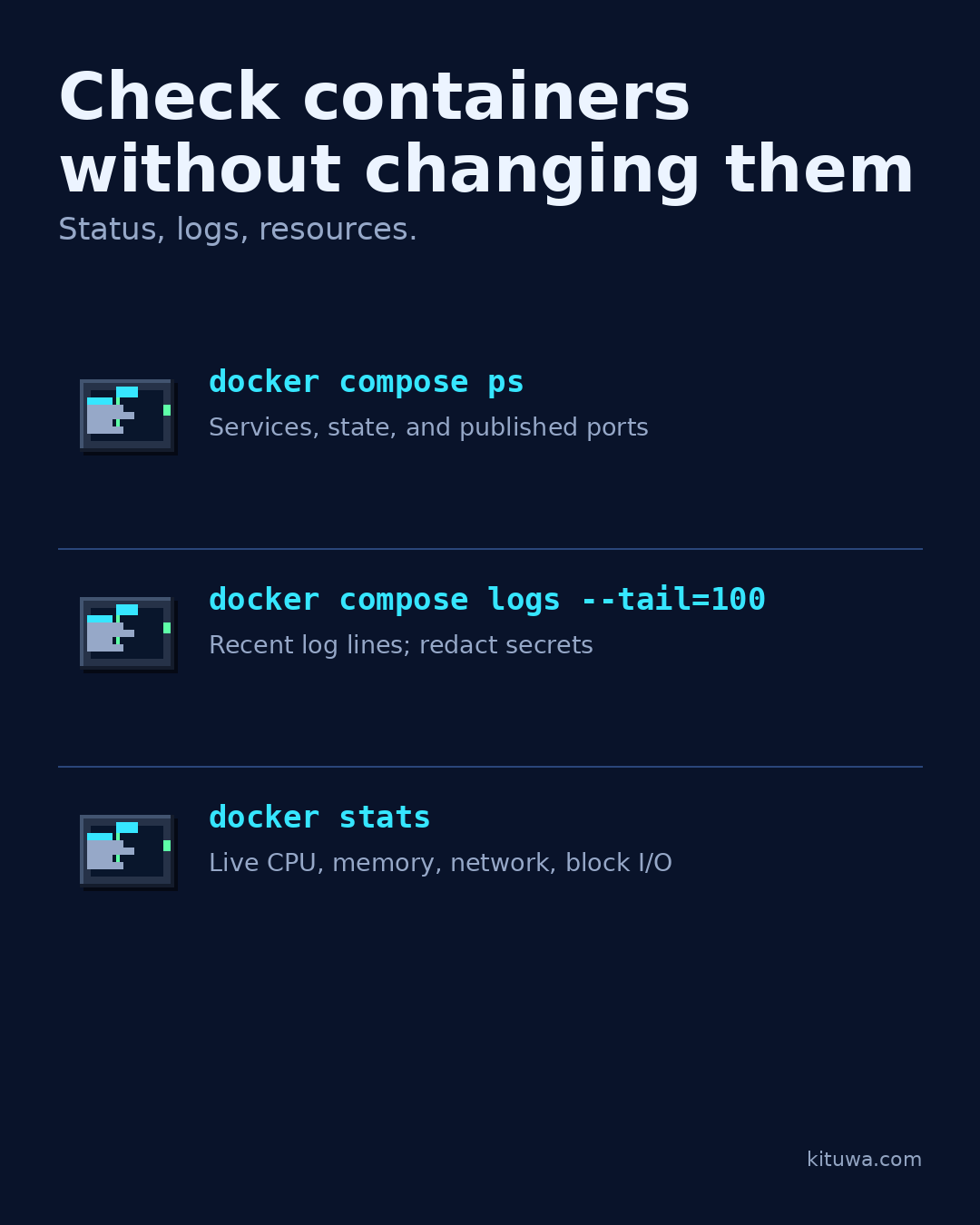
- docker compose ps — Services, state, and published ports
- docker compose logs --tail=100 — Recent log lines; redact secrets
- docker stats — Live CPU, memory, network, block I/O
Why it matters
The goal is not to memorize a product name or copy a command blindly. It is to understand what the change affects, verify it against an official reference, test it on spare hardware or a virtual machine when possible, and keep a rollback path.
A practical walkthrough
Check docker compose ps
docker compose ps shows the project's services, state, and ports. Run it from the project directory, or use -f to point at the Compose file.
Check docker compose logs --tail=100
docker compose logs --tail=100 shows the last 100 log lines. Add a service name to narrow it. Logs can contain tokens, email addresses, or personal data; redact before sharing.
Check docker stats
docker stats shows live CPU, memory, network, and block I/O per container. Use it to spot a container that is restarting, leaking memory, or saturating a resource.
Check the container state
Permissions matter: if the Docker socket is root-equivalent, membership in the docker group is powerful. Do not run random compose files as a shortcut.
Check ps
If a service is restarting, ps may show a changing state; note the restart count and read the logs. Use -a with ps if you also need stopped containers. These commands are read-only. They tell you what is happening; they do not fix it.
Your turn
What symptom are you trying to understand?
What to verify
- Use the official documentation for the exact version you run.
- Test on a spare device or virtual machine before changing a working system.
- Keep a backup and a rollback path.
- Record what changed and how you verified it.
Common mistakes
- Deleting a container without checking its volumes and bind mounts.
- Assuming a restart fixed the cause because the service came back.
- Giving broad access to the Docker socket or host.
Quick checklist
- ☐ Status, logs, resources.
- ☐ docker compose ps — Services, state, and published ports
- ☐ docker compose logs --tail=100 — Recent log lines; redact secrets
- ☐ docker stats — Live CPU, memory, network, block I/O
FAQ
What is the first step?
Check containers without changing them.
What should I avoid?
Deleting a container without checking its volumes and bind mounts.
Where can I verify the current details?
Use the official references below; versions and interfaces change.
References
Related guides
Need help?
If you want a second opinion on the setup or the rollback plan, Kituwa can review it with you. Start with the checklist above; it makes the conversation more useful.