Kituwa IT · Field guide
Nextcloud, Syncthing, or a file server?
Three tools, three different jobs. Nextcloud is a self-hosted collaboration suite: accounts, file sync, sharing,… Practical checks and official references.
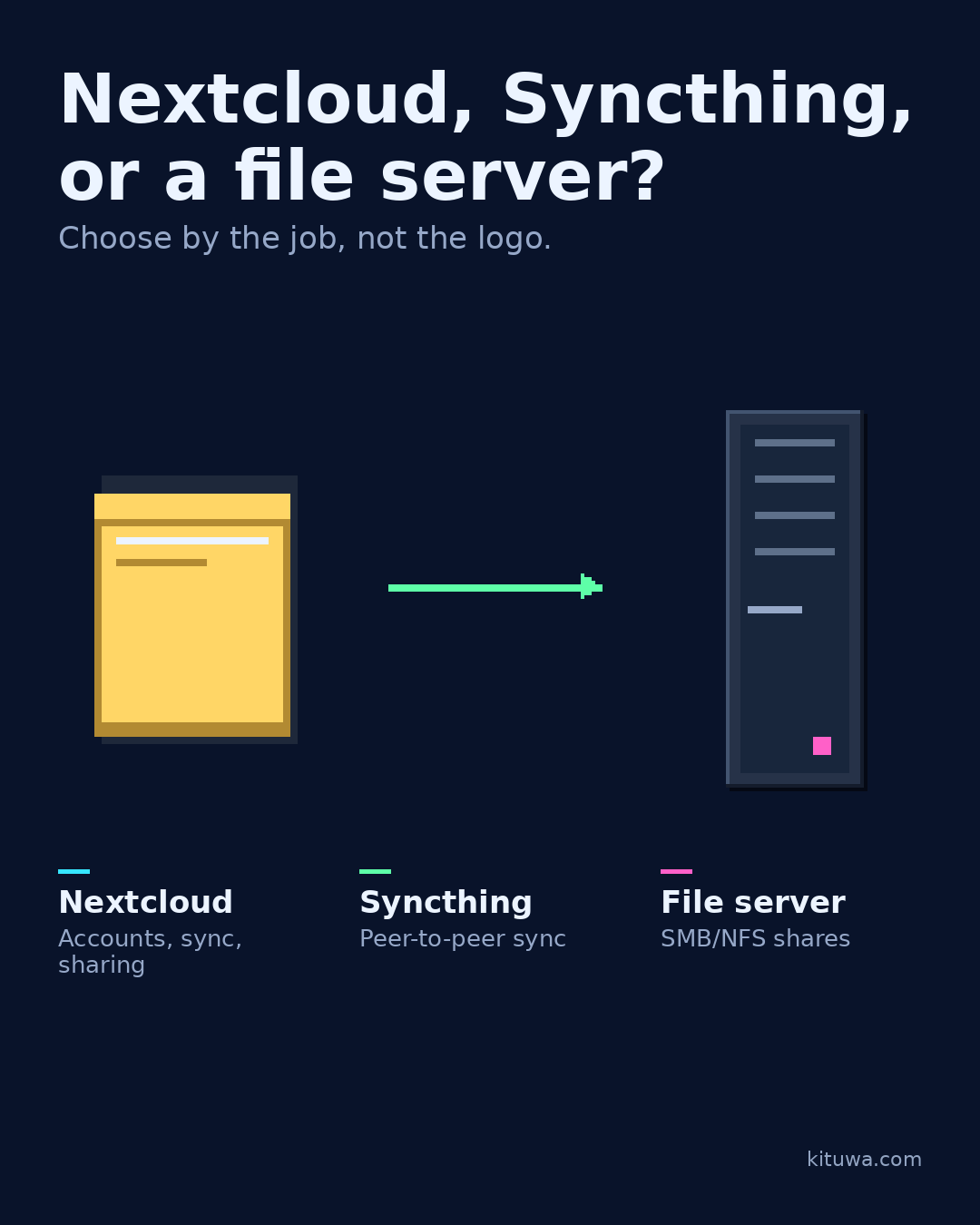
Three tools, three different jobs.
This guide expands the Facebook post into a practical workflow for beginners, home-lab users, and small-business owners who want to understand the trade-offs before changing a working system.
What this guide covers
- Nextcloud, Syncthing, or a file server?
- Choose by the job, not the logo.
- Nextcloud — Accounts, sync, sharing
- Syncthing — Peer-to-peer sync
- File server — SMB/NFS shares
Why it matters
The goal is not to memorize a product name or copy a command blindly. It is to understand what the change affects, verify it against an official reference, test it on spare hardware or a virtual machine when possible, and keep a rollback path.
A practical walkthrough
Protect the data first
Nextcloud is a self-hosted collaboration suite: accounts, file sync, sharing, calendars, and apps. It is a good fit when several people need a shared web interface. It also brings users, permissions, updates, and backups to maintain.
Step 2: what to check
Syncthing is peer-to-peer file synchronization. Devices sync folders directly; there is no central account server by default. It is a good fit for keeping a few devices in sync, but it is not a shared drive with per-user permissions.
Check the network path
A plain file server (SMB/NFS) exposes folders on the network. It is simple and fast on a LAN, but it is not a collaboration portal and remote access needs care.
Protect the data first
Choose by the job: collaboration, device sync, or shared folders. Do not expose any of them to the internet until you understand authentication, TLS, and backups. Whichever you choose, write down who owns updates and backups; overlap is fine if the responsibilities are clear.
Your turn
Which job do you actually need?
What to verify
- Use the official documentation for the exact version you run.
- Test on a spare device or virtual machine before changing a working system.
- Keep a backup and a rollback path.
- Record what changed and how you verified it.
Common mistakes
- Changing more than one thing at a time.
- Skipping the official documentation for your version.
- Assuming a warning means you should delete or reset data.
- Not recording what you changed or how you verified it.
Quick checklist
- ☐ Choose by the job, not the logo.
- ☐ Nextcloud — Accounts, sync, sharing
- ☐ Syncthing — Peer-to-peer sync
- ☐ File server — SMB/NFS shares
FAQ
What is the first step?
Three tools, three different jobs.
What should I avoid?
Changing more than one thing at a time.
Where can I verify the current details?
Use the official references below; versions and interfaces change.
References
Related guides
- When did you last restore a file?
- Phone photo backup: verify the journey
- Your photos deserve an exit plan
Need help?
If you want a second opinion on the setup or the rollback plan, Kituwa can review it with you. Start with the checklist above; it makes the conversation more useful.