Kituwa IT · Field guide
Phone photo backup: verify the journey
Phone photo backup is a journey, not a single setting. Start with the phone: which albums are included, and what… Practical checks and official references.
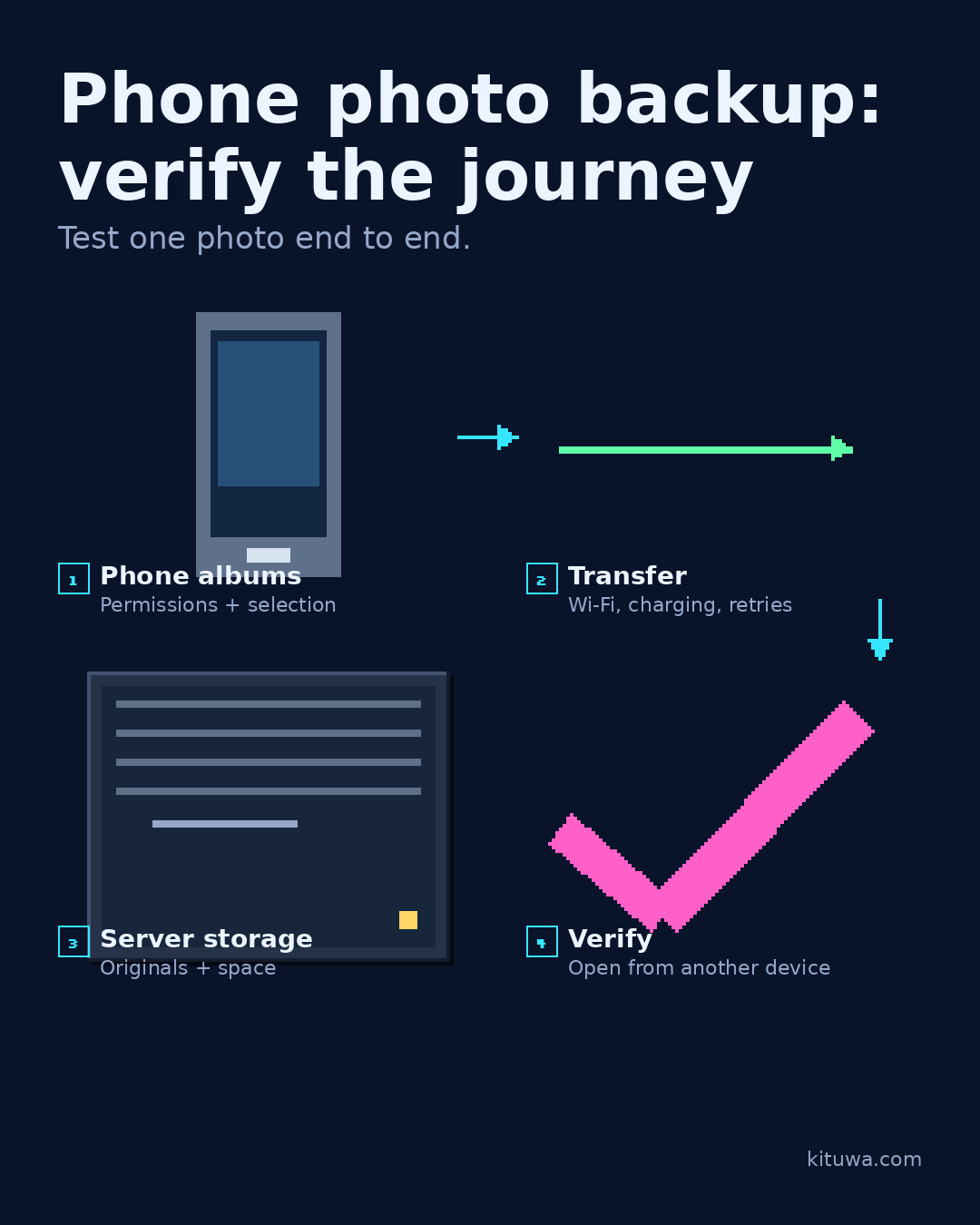
Phone photo backup is a journey, not a single setting.
This guide expands the Facebook post into a practical workflow for beginners, home-lab users, and small-business owners who want to understand the trade-offs before changing a working system.
What this guide covers
- Phone photo backup: verify the journey
- Test one photo end to end.
- 1 Phone albums — Permissions + selection
- 2 Transfer — Wi-Fi, charging, retries
- 3 Server storage — Originals + space
- 4 Verify — Open from another device
Why it matters
The goal is not to memorize a product name or copy a command blindly. It is to understand what the change affects, verify it against an official reference, test it on spare hardware or a virtual machine when possible, and keep a rollback path.
A practical walkthrough
Protect the data first
Start with the phone: which albums are included, and what happens when you delete a photo locally? Then the transfer: Wi-Fi only, charging only, or both? Next, the server: where do the files land, and how much space do they use? Finally, the verification: can you open a recent photo from another device, and does the backup include the original file?
Plan for growth
Test with one photo. Note the filename, date, and size. Back it up, then find it on the server and open it. Delete nothing during the test.
Protect the data first
If the app has a “free up space” feature, read exactly what it deletes and where the original is verified before enabling it. Check the failure cases: phone offline, server offline, storage full, and a photo with a duplicate name. A backup that silently stops is worse than no backup because you stop worrying.
Your turn
Can you find yesterday's photo on the server?
What to verify
- Use the official documentation for the exact version you run.
- Test on a spare device or virtual machine before changing a working system.
- Keep a backup and a rollback path.
- Record what changed and how you verified it.
Common mistakes
- Treating RAID, sync, or a cloud gallery as a complete backup.
- Never testing a restore of a real file.
- Keeping the only copy on the same device or in the same location.
Quick checklist
- ☐ Test one photo end to end.
- ☐ 1 Phone albums — Permissions + selection
- ☐ 2 Transfer — Wi-Fi, charging, retries
- ☐ 3 Server storage — Originals + space
- ☐ 4 Verify — Open from another device
FAQ
What is the first step?
Phone photo backup is a journey, not a single setting.
What should I avoid?
Treating RAID, sync, or a cloud gallery as a complete backup.
Where can I verify the current details?
Use the official references below; versions and interfaces change.
References
Related guides
- Nextcloud, Syncthing, or a file server?
- Your photos deserve an exit plan
- Immich: photo organization with responsibilities
Need help?
If you want a second opinion on the setup or the rollback plan, Kituwa can review it with you. Start with the checklist above; it makes the conversation more useful.