Kituwa IT · Field guide
A home folder backup you can verify
A backup you never restore is a hope, not a verified backup. Test the whole path with one small folder. Practical checks and official references.
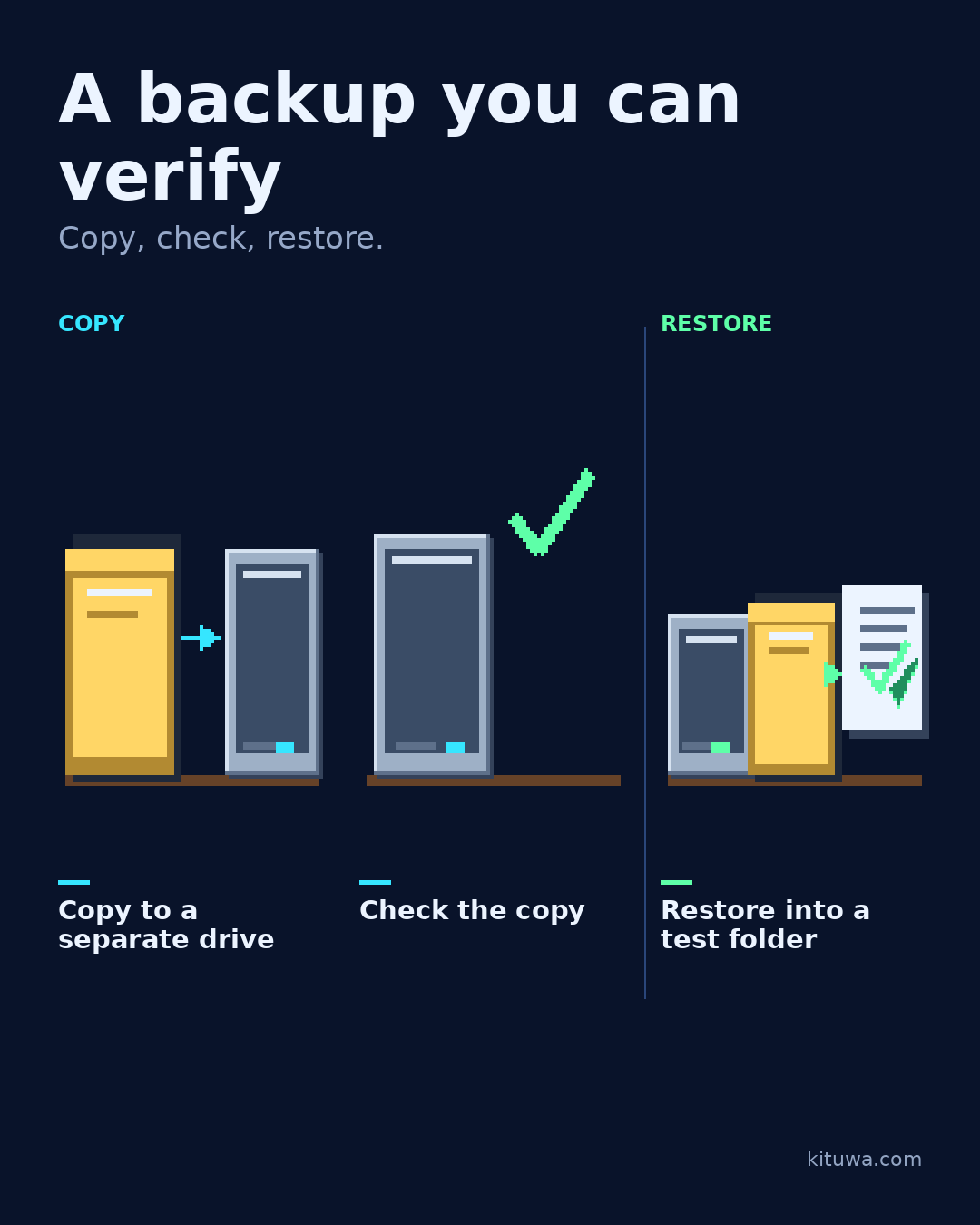
A backup you never restore is a hope, not a verified backup. Test the whole path with one small folder.
This guide expands the Facebook post into a practical workflow for beginners, home-lab users, and small-business owners who want to understand the trade-offs before changing a working system.
What this guide covers
- A backup you can verify
- Copy, check, restore.
- COPY
- RESTORE
- Copy to a separate drive
- Check the copy
Why it matters
The goal is not to memorize a product name or copy a command blindly. It is to understand what the change affects, verify it against an official reference, test it on spare hardware or a virtual machine when possible, and keep a rollback path.
A practical walkthrough
Prove the restore
- Pick an expendable test folder with a few files.
- Copy it to an external drive. Use a tool you understand; check the copy completed without errors.
- Compare what arrived: file count, sizes, and open a couple of files from the external drive.
- Eject or unmount the drive safely, then reconnect it.
- Restore the folder into a new location and open a file. Do not overwrite the original.
Protect the data first
That last step is the one people skip. Copying is only one part of a backup plan. Also decide how often you copy, how many versions you keep, and where the second copy lives. A drive in the same bag as the laptop travels with the same risk.
Check rsync
On Linux, a file manager copy is enough for this test; rsync is useful later for repeatable jobs. Just do not run a command you cannot explain.
Your turn
Test one expendable file today. Did the restore open?
What to verify
- Use the official documentation for the exact version you run.
- Test on a spare device or virtual machine before changing a working system.
- Keep a backup and a rollback path.
- Record what changed and how you verified it.
Common mistakes
- Treating RAID, sync, or a cloud gallery as a complete backup.
- Never testing a restore of a real file.
- Keeping the only copy on the same device or in the same location.
Quick checklist
- ☐ A backup you can verify
- ☐ Copy, check, restore.
- ☐ COPY
- ☐ RESTORE
- ☐ Copy to a separate drive
- ☐ Check the copy
FAQ
What is the first step?
A backup you never restore is a hope, not a verified backup.
What should I avoid?
Treating RAID, sync, or a cloud gallery as a complete backup.
Where can I verify the current details?
Use the official references below; versions and interfaces change.
References
Related guides
Need help?
If you want a second opinion on the setup or the rollback plan, Kituwa can review it with you. Start with the checklist above; it makes the conversation more useful.