Kituwa IT · Field guide
Linux Mint vs Ubuntu Desktop
Linux Mint and Ubuntu Desktop both get you to a working desktop, but they make different trade-offs. Daily workflow:… Practical checks and official referen…
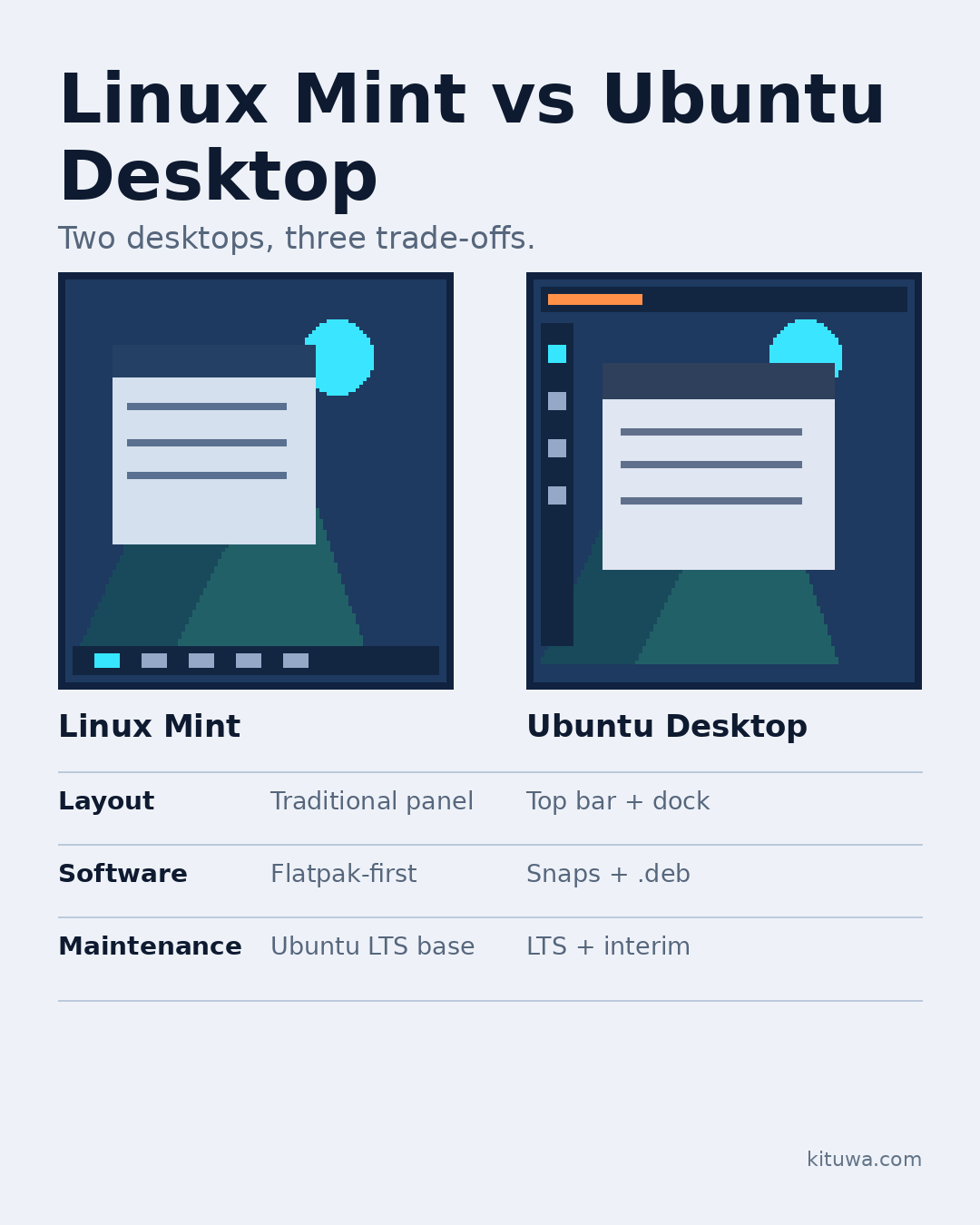
Linux Mint and Ubuntu Desktop both get you to a working desktop, but they make different trade-offs.
This guide expands the Facebook post into a practical workflow for beginners, home-lab users, and small-business owners who want to understand the trade-offs before changing a working system.
What this guide covers
- Linux Mint vs Ubuntu Desktop
- Two desktops, three trade-offs.
- Linux Mint
- Ubuntu Desktop
- Layout — Traditional panel — Top bar + dock
- Software — Flatpak-first — Snaps + .deb
Why it matters
The goal is not to memorize a product name or copy a command blindly. It is to understand what the change affects, verify it against an official reference, test it on spare hardware or a virtual machine when possible, and keep a rollback path.
A practical walkthrough
Verify the key path
Daily workflow: Mint's Cinnamon layout will feel familiar if you are coming from Windows. Ubuntu's GNOME is more keyboard- and gesture-oriented.
Use the supported update path
Desktop experience: Mint adds its own Update Manager, Software Manager, and Timeshift snapshot tool. Ubuntu ships a more opinionated GNOME setup.
Step 3: what to check
Software availability: Mint's current line is built on an Ubuntu LTS base, so most Ubuntu packages and guides apply. Mint enables Flatpak and disables the Snap Store by default; Ubuntu uses snaps for some first-party apps. Both can run .deb packages and AppImages.
Step 4: what to check
Maintenance: both offer long-term-support releases. Mint follows Ubuntu LTS bases; Ubuntu also offers interim releases. Check the current official release pages before you download, and do not choose by version number alone.
Step 5: what to check
A compatibility-first recommendation: if a vendor or workplace explicitly supports Ubuntu, start there. If you want a familiar layout, Flatpak-first software, and a gentler first week, try Mint from a live USB.
Your turn
Which matters more to you: a familiar layout or following mainstream Ubuntu tutorials?
What to verify
- Use the official documentation for the exact version you run.
- Test on a spare device or virtual machine before changing a working system.
- Keep a backup and a rollback path.
- Record what changed and how you verified it.
Common mistakes
- Changing more than one thing at a time.
- Skipping the official documentation for your version.
- Assuming a warning means you should delete or reset data.
- Not recording what you changed or how you verified it.
Quick checklist
- ☐ Two desktops, three trade-offs.
- ☐ Linux Mint
- ☐ Ubuntu Desktop
- ☐ Layout — Traditional panel — Top bar + dock
- ☐ Software — Flatpak-first — Snaps + .deb
- ☐ Maintenance — Ubuntu LTS base — LTS + interim
FAQ
What is the first step?
Linux Mint and Ubuntu Desktop both get you to a working desktop, but they make different trade-offs.
What should I avoid?
Changing more than one thing at a time.
Where can I verify the current details?
Use the official references below; versions and interfaces change.
References
Related guides
Need help?
If you want a second opinion on the setup or the rollback plan, Kituwa can review it with you. Start with the checklist above; it makes the conversation more useful.