Kituwa IT · Field guide
SSD or RAM: which upgrade helps?
Three situations, three different next steps. Still booting from a mechanical hard drive? Practical checks and official references.
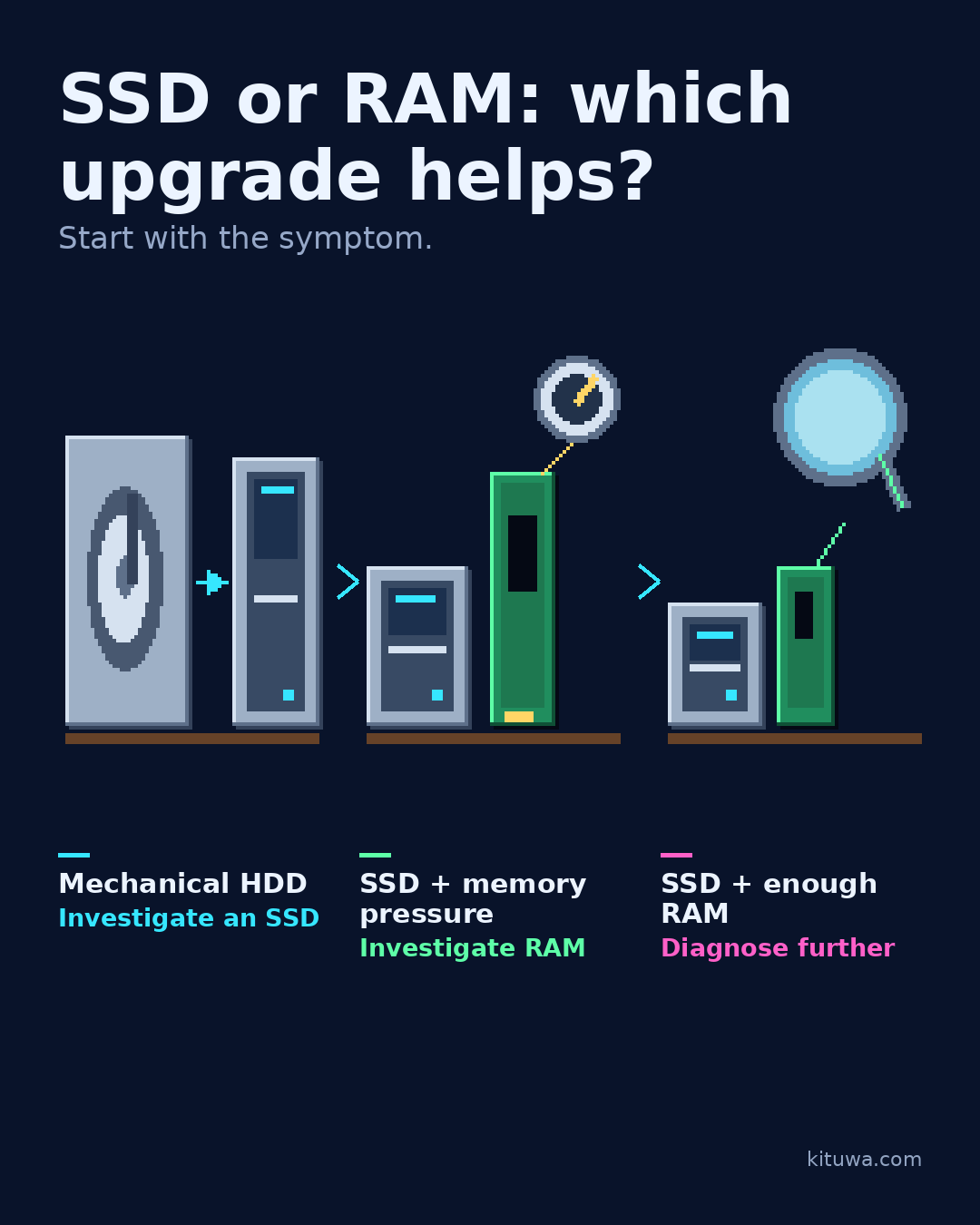
Three situations, three different next steps.
This guide expands the Facebook post into a practical workflow for beginners, home-lab users, and small-business owners who want to understand the trade-offs before changing a working system.
What this guide covers
- SSD or RAM: which upgrade helps?
- Start with the symptom.
- Mechanical HDD — Investigate an SSD
- SSD + memory pressure — Investigate RAM
- SSD + enough RAM — Diagnose further
Why it matters
The goal is not to memorize a product name or copy a command blindly. It is to understand what the change affects, verify it against an official reference, test it on spare hardware or a virtual machine when possible, and keep a rollback path.
A practical walkthrough
Step 1: what to check
Still booting from a mechanical hard drive? Investigate an SSD first. Startup, app launches, and file searches usually feel the difference most.
Step 2: what to check
Already on an SSD but stuttering with many tabs or apps? Investigate RAM. Check memory pressure under your real workload, not a single idle screenshot.
Step 3: what to check
Already on an SSD with enough memory? Diagnose further before buying: thermals, CPU load, failing hardware, background jobs, or software.
Prove the restore
Before any purchase, check upgradeability. Some laptops have soldered RAM, one slot, or no free M.2/SATA bay. Confirm the exact model, warranty, and part compatibility. And keep the no-purchase option: free up storage, review startup apps, update, and test a restore.
Step 5: what to check
Share non-sensitive specs if you want a direction. I cannot promise individual replies.
Your turn
Which situation sounds like yours?
What to verify
- Use the official documentation for the exact version you run.
- Test on a spare device or virtual machine before changing a working system.
- Keep a backup and a rollback path.
- Record what changed and how you verified it.
Common mistakes
- Changing more than one thing at a time.
- Skipping the official documentation for your version.
- Assuming a warning means you should delete or reset data.
- Not recording what you changed or how you verified it.
Quick checklist
- ☐ Start with the symptom.
- ☐ Mechanical HDD — Investigate an SSD
- ☐ SSD + memory pressure — Investigate RAM
- ☐ SSD + enough RAM — Diagnose further
FAQ
What is the first step?
Three situations, three different next steps.
What should I avoid?
Changing more than one thing at a time.
Where can I verify the current details?
Use the official references below; versions and interfaces change.
References
- Crucial — compatible memory and SSD upgrades
- man free — memory pressure signals
- Linux kernel — DRM memory management
Related guides
- Slow computer: diagnose before buying
- Linux Mint vs Ubuntu Desktop
- A home folder backup you can verify
Need help?
If you want a second opinion on the setup or the rollback plan, Kituwa can review it with you. Start with the checklist above; it makes the conversation more useful.