Kituwa IT · Field guide
Slow computer: diagnose before buying
When a computer feels slow, do not buy parts yet. Follow the symptom first. Practical checks and official references.
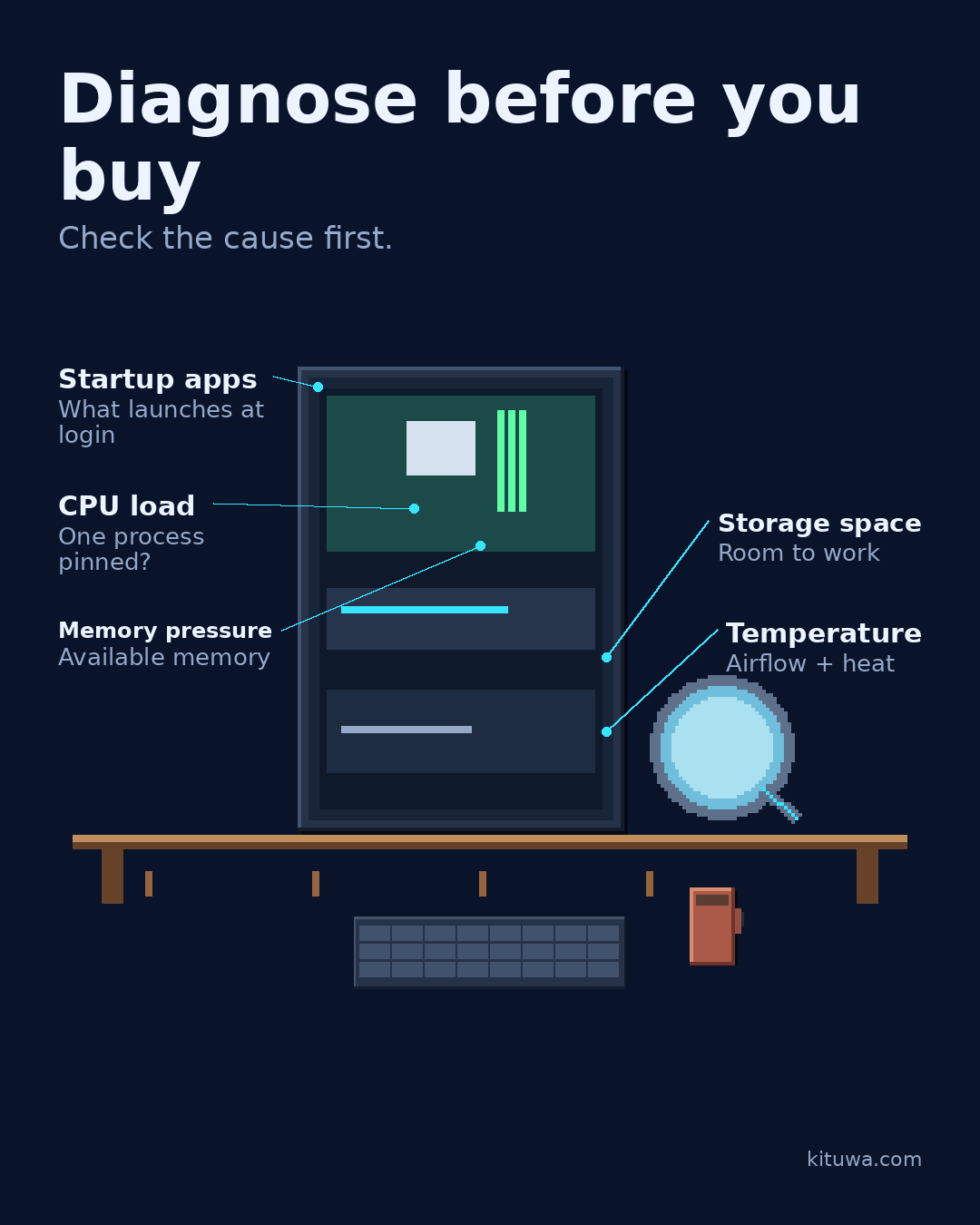
When a computer feels slow, do not buy parts yet. Follow the symptom first.
This guide expands the Facebook post into a practical workflow for beginners, home-lab users, and small-business owners who want to understand the trade-offs before changing a working system.
What this guide covers
- Diagnose before you buy
- Check the cause first.
- Startup apps — What launches at login
- CPU load — One process pinned?
- Memory pressure — Available memory
- Storage space — Room to work
Why it matters
The goal is not to memorize a product name or copy a command blindly. It is to understand what the change affects, verify it against an official reference, test it on spare hardware or a virtual machine when possible, and keep a rollback path.
A practical walkthrough
Check top
- Startup apps: does the delay happen at login? Check what launches automatically.
- CPU load: is one process pinned? On Linux,
toporuptimegives a first look. - Memory pressure: does it stutter with many tabs or apps? Check available memory with
free -h. - Storage capacity: is the system drive nearly full? Check
df -h, and leave working headroom. - Temperatures: does it slow down after a few minutes? Dust, airflow, and thermal throttling matter.
Check systemd-analyze blame
Linux examples: systemd-analyze blame for boot time, top for CPU, free -h for memory, df -h for space, and sensors from lm-sensors for temperatures. Other systems have equivalents. The sequence is OS-neutral; the tools are not.
Step 3: what to check
Avoid registry cleaners, “one-click speedup” tools, and claims of instant results. Change one thing at a time and rerun the same task.
Your turn
When does it slow down: startup, browsing, gaming, or everything?
What to verify
- Use the official documentation for the exact version you run.
- Test on a spare device or virtual machine before changing a working system.
- Keep a backup and a rollback path.
- Record what changed and how you verified it.
Common mistakes
- Changing more than one thing at a time.
- Skipping the official documentation for your version.
- Assuming a warning means you should delete or reset data.
- Not recording what you changed or how you verified it.
Quick checklist
- ☐ Diagnose before you buy
- ☐ Check the cause first.
- ☐ Startup apps — What launches at login
- ☐ CPU load — One process pinned?
- ☐ Memory pressure — Available memory
- ☐ Storage space — Room to work
FAQ
What is the first step?
When a computer feels slow, do not buy parts yet.
What should I avoid?
Changing more than one thing at a time.
Where can I verify the current details?
Use the official references below; versions and interfaces change.
References
Related guides
Need help?
If you want a second opinion on the setup or the rollback plan, Kituwa can review it with you. Start with the checklist above; it makes the conversation more useful.