Kituwa IT · Field guide
RAM is not storage
RAM is the workbench. Storage is the cupboard. Practical checks and official references.
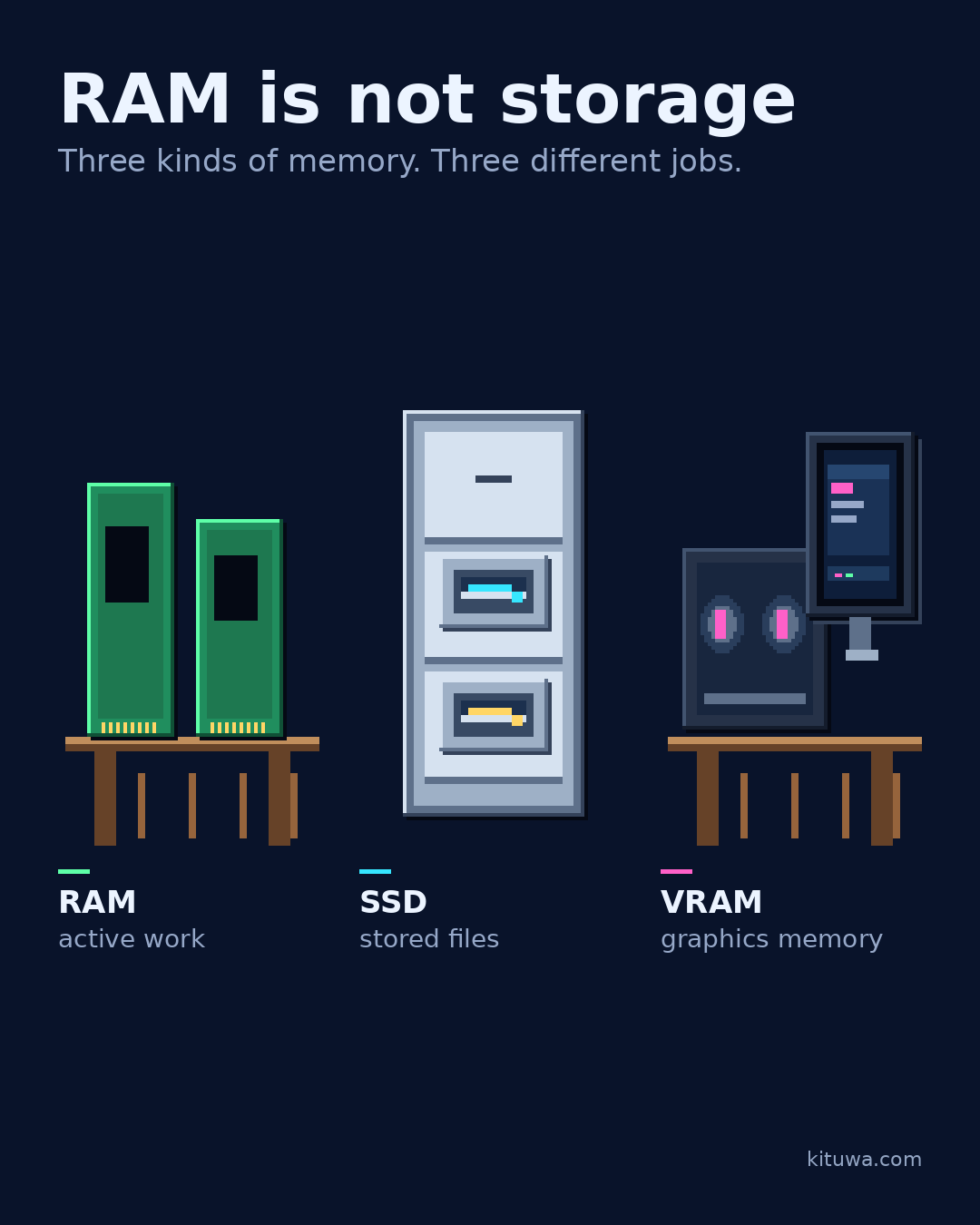
RAM is the workbench. Storage is the cupboard. VRAM is the graphics card's own workbench.
This guide expands the Facebook post into a practical workflow for beginners, home-lab users, and small-business owners who want to understand the trade-offs before changing a working system.
What this guide covers
- RAM is not storage
- Three kinds of memory. Three different jobs.
- RAM — active work
- SSD — stored files
- VRAM — graphics memory
Why it matters
The goal is not to memorize a product name or copy a command blindly. It is to understand what the change affects, verify it against an official reference, test it on spare hardware or a virtual machine when possible, and keep a rollback path.
A practical walkthrough
Step 1: what to check
System RAM holds the programs and files your computer is using right now. It is fast, and it loses its contents when power goes off. When active work does not fit, the system leans on swap or starts closing things.
Use the supported update path
SSD capacity is persistent storage: files stay put when the machine is off. A larger SSD gives you room for photos, projects, and updates. It does not automatically make a memory-starved computer faster.
Test the model on your task
VRAM is memory on the graphics card. Games, video work, and local AI models can be limited by how much fits there. A card with more VRAM can hold larger models or textures, but the CPU, system RAM, and software still matter.
Check free -h
So “more storage” and “more memory” solve different problems. Check before buying: on Linux, run free -h and read the available column; on Windows, open Task Manager's Performance tab; on macOS, use Activity Monitor's Memory tab.
Your turn
Which part of your machine is actually running out first?
What to verify
- Use the official documentation for the exact version you run.
- Test on a spare device or virtual machine before changing a working system.
- Keep a backup and a rollback path.
- Record what changed and how you verified it.
Common mistakes
- Treating RAID, sync, or a cloud gallery as a complete backup.
- Never testing a restore of a real file.
- Keeping the only copy on the same device or in the same location.
Quick checklist
- ☐ Three kinds of memory. Three different jobs.
- ☐ RAM — active work
- ☐ SSD — stored files
- ☐ VRAM — graphics memory
FAQ
What is the first step?
RAM is the workbench.
What should I avoid?
Treating RAID, sync, or a cloud gallery as a complete backup.
Where can I verify the current details?
Use the official references below; versions and interfaces change.
References
- Linux kernel — physical memory
- Linux kernel — DRM memory management (VRAM)
- man free — available memory
Related guides
Need help?
If you want a second opinion on the setup or the rollback plan, Kituwa can review it with you. Start with the checklist above; it makes the conversation more useful.