Kituwa IT · Field guide
A safer update routine
A safer update routine has five steps. 1. Practical checks and official references.
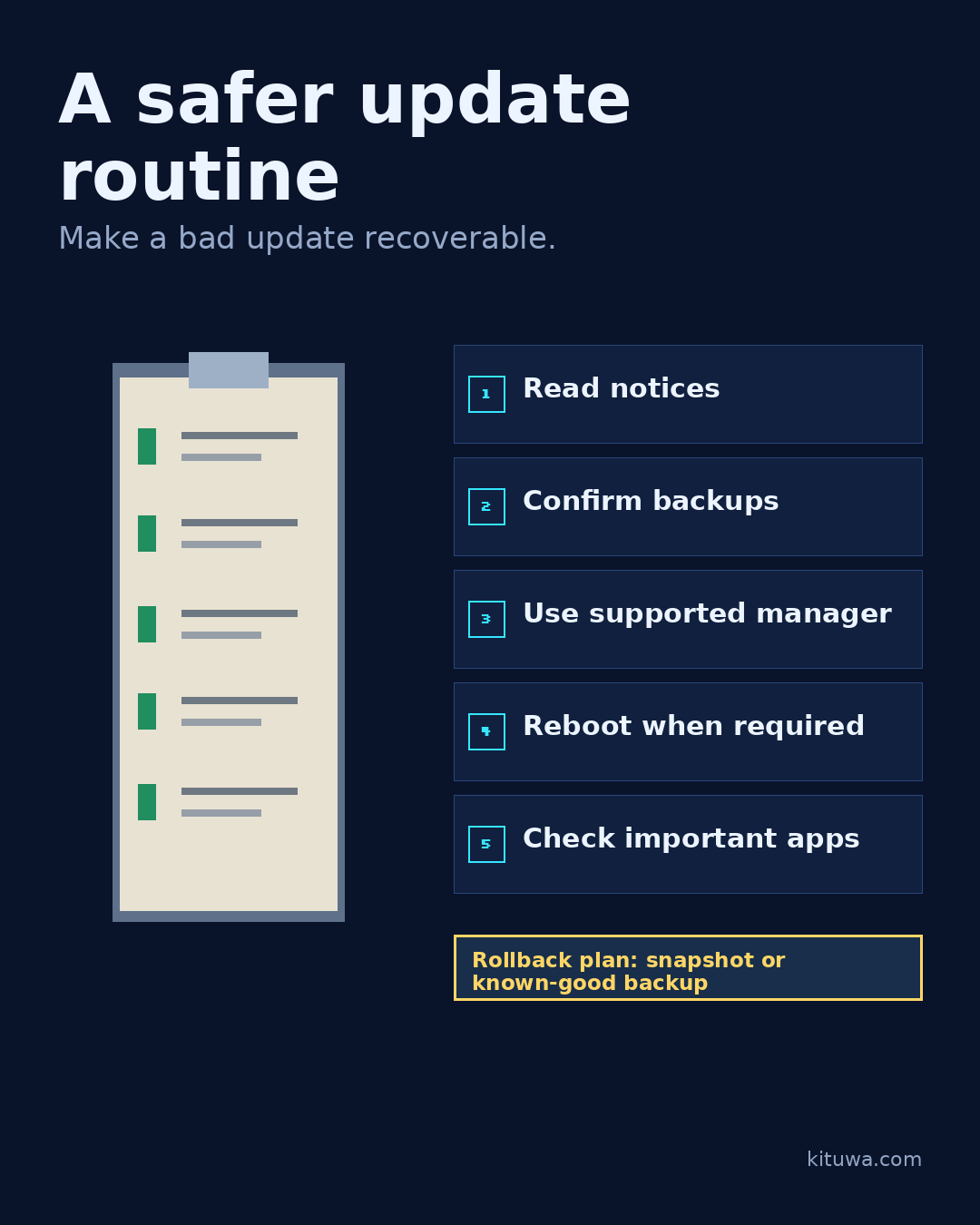
A safer update routine has five steps.
This guide expands the Facebook post into a practical workflow for beginners, home-lab users, and small-business owners who want to understand the trade-offs before changing a working system.
What this guide covers
- A safer update routine
- Make a bad update recoverable.
- 1 Read notices
- 2 Confirm backups
- 3 Use supported manager
- 4 Reboot when required
Why it matters
The goal is not to memorize a product name or copy a command blindly. It is to understand what the change affects, verify it against an official reference, test it on spare hardware or a virtual machine when possible, and keep a rollback path.
A practical walkthrough
Protect the data first
- Read the notices: release notes, security advisories, and any manual-intervention warnings for your distribution.
- Confirm backups: at least one recent copy on a separate device, and a restore test you trust.
- Use the supported manager: Mint's Update Manager, Ubuntu's apt/Software Updater, or your distribution's documented tool. Do not paste commands from another distro's guide.
- Reboot when required: kernel, driver, and library updates may only take effect after a restart. Save your work first.
- Check important apps: browser, VPN, printer, backups, and anything you need tomorrow.
Protect the data first
Before a major upgrade, read the release notes for your exact edition and make sure the backup is recent enough to matter. If the update requires a reboot, do not postpone it indefinitely; a half-applied kernel or driver update can leave the machine in a confusing state.
Protect the data first
A rollback plan matters: Timeshift snapshots, a VM snapshot, or a known-good backup. Updates are not guaranteed to be problem-free; the goal is to make a bad update recoverable.
Your turn
Which step do you skip most often?
What to verify
- Use the official documentation for the exact version you run.
- Test on a spare device or virtual machine before changing a working system.
- Keep a backup and a rollback path.
- Record what changed and how you verified it.
Common mistakes
- Changing more than one thing at a time.
- Skipping the official documentation for your version.
- Assuming a warning means you should delete or reset data.
- Not recording what you changed or how you verified it.
Quick checklist
- ☐ Make a bad update recoverable.
- ☐ 1 Read notices
- ☐ 2 Confirm backups
- ☐ 3 Use supported manager
- ☐ 4 Reboot when required
- ☐ 5 Check important apps
FAQ
What is the first step?
A safer update routine has five steps.
What should I avoid?
Changing more than one thing at a time.
Where can I verify the current details?
Use the official references below; versions and interfaces change.
References
- Linux Mint User Guide — Update Manager
- Ubuntu Server — package management
- Arch Wiki — System maintenance
Related guides
Need help?
If you want a second opinion on the setup or the rollback plan, Kituwa can review it with you. Start with the checklist above; it makes the conversation more useful.