Kituwa IT · Field guide
Before you paste a terminal command
Before you paste a command, read it in five parts. Program: what runs? Practical checks and official references.
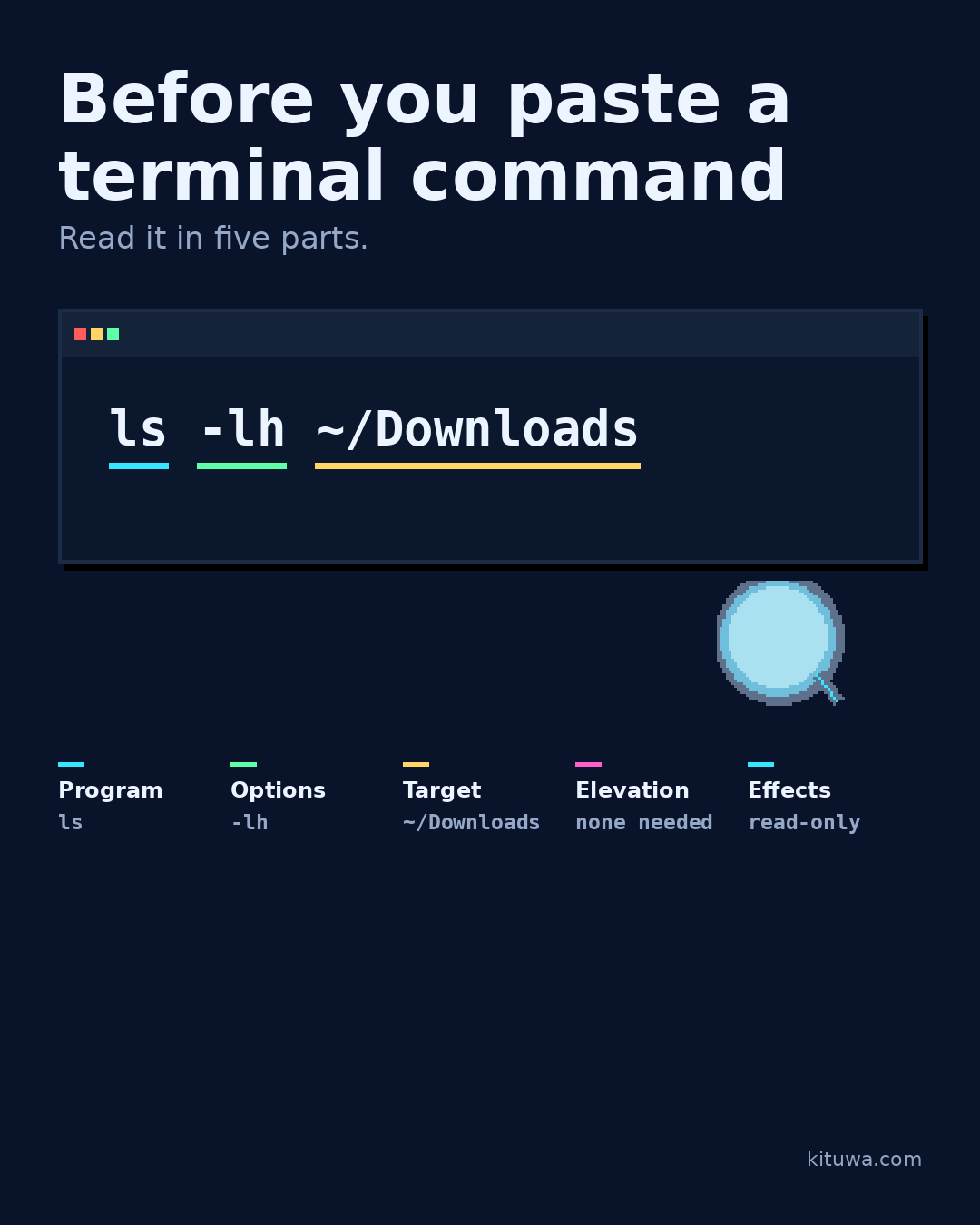
Before you paste a command, read it in five parts.
This guide expands the Facebook post into a practical workflow for beginners, home-lab users, and small-business owners who want to understand the trade-offs before changing a working system.
What this guide covers
- Before you paste a terminal command
- Read it in five parts.
- ls -lh ~/Downloads
- Program — ls
- Options — -lh
- Target — ~/Downloads
Why it matters
The goal is not to memorize a product name or copy a command blindly. It is to understand what the change affects, verify it against an official reference, test it on spare hardware or a virtual machine when possible, and keep a rollback path.
A practical walkthrough
Check ls
Program: what runs? ls lists; rm removes.
Options: flags change behavior. -r often means recursive; -f often means force. Check the manual page.
Target: which path or device? A typo can point at the wrong disk.
Elevation: sudo is not a magic prefix; it runs the command with root privileges.
Effects: read-only, writes, deletes, downloads, or pipes to another program?
Check ls -lh ~/Downloads
Harmless sample: ls -lh ~/Downloads lists a directory with human-readable sizes. No writes.
Check curl … | sh
Piping an unknown download into a shell (curl … | sh) means you are executing code you have not inspected. Download it, read it, check the source, then run it if you understand it.
Check man <program>
Use man <program> or <program> --help to confirm what an option does. If a command includes a device path, run lsblk first and read the output; device names are not stable across reboots or ports.
Step 5: what to check
If you cannot explain a command in plain language, do not run it. Ask.
Your turn
Which part of a command do you check first?
What to verify
- Use the official documentation for the exact version you run.
- Test on a spare device or virtual machine before changing a working system.
- Keep a backup and a rollback path.
- Record what changed and how you verified it.
Common mistakes
- Changing more than one thing at a time.
- Skipping the official documentation for your version.
- Assuming a warning means you should delete or reset data.
- Not recording what you changed or how you verified it.
Quick checklist
- ☐ Read it in five parts.
- ☐ ls -lh ~/Downloads
- ☐ Program — ls
- ☐ Options — -lh
- ☐ Target — ~/Downloads
- ☐ Elevation — none needed
FAQ
What is the first step?
Before you paste a command, read it in five parts.
What should I avoid?
Changing more than one thing at a time.
Where can I verify the current details?
Use the official references below; versions and interfaces change.
References
Related guides
Need help?
If you want a second opinion on the setup or the rollback plan, Kituwa can review it with you. Start with the checklist above; it makes the conversation more useful.