Kituwa IT · Field guide
Five read-only Linux health checks
A slow or strange Linux machine does not need random deletion. Start with five read-only checks and write down what… Practical checks and official references.
A slow or strange Linux machine does not need random deletion. Start with five read-only checks and write down what you see.
This guide expands the Facebook post into a practical workflow for beginners, home-lab users, and small-business owners who want to understand the trade-offs before changing a working system.
What this guide covers
- Five read-only health checks
- Look first. Change nothing.
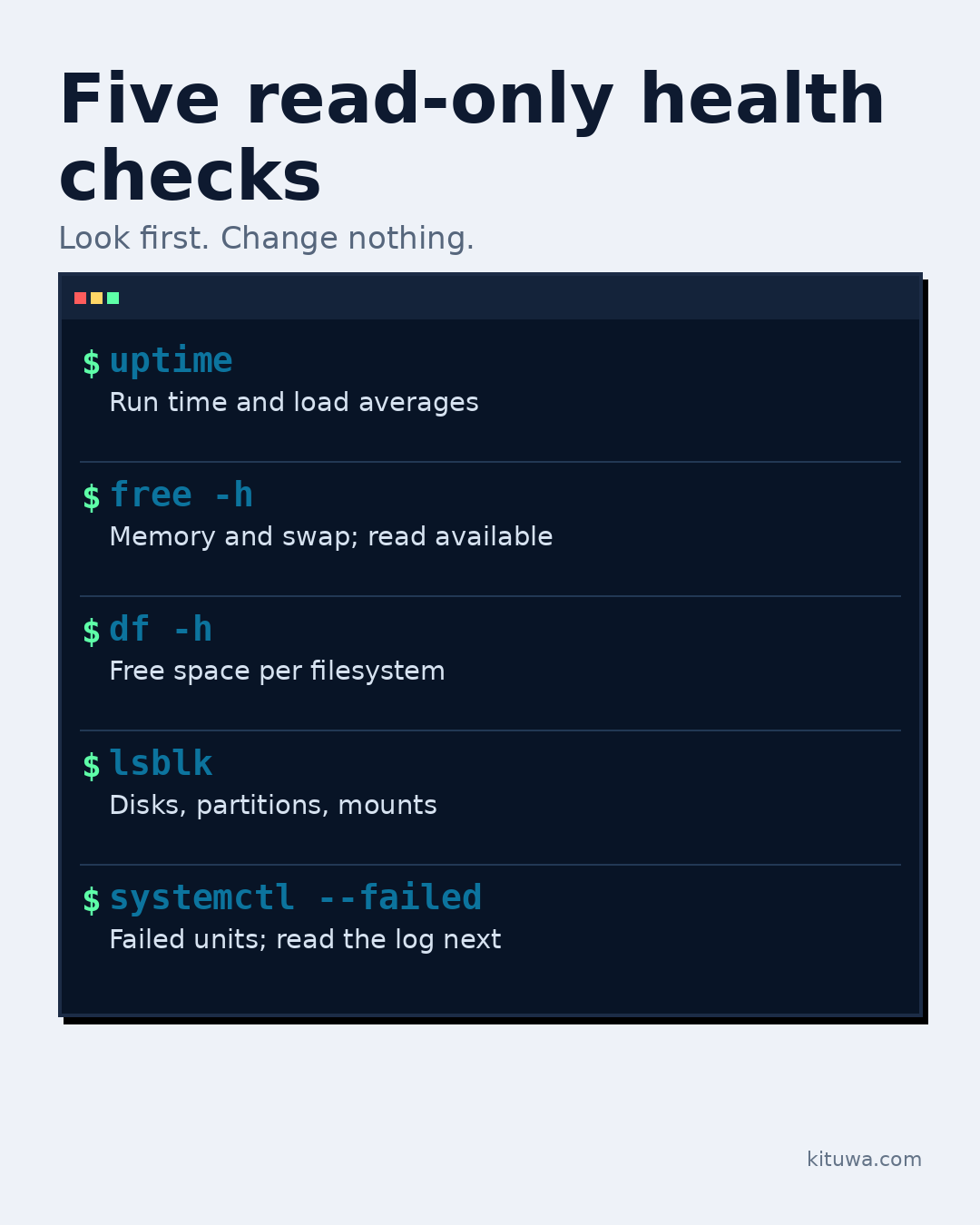
- uptime — Run time and load averages
- free -h — Memory and swap; read available
- df -h — Free space per filesystem
- lsblk — Disks, partitions, mounts
Why it matters
The goal is not to memorize a product name or copy a command blindly. It is to understand what the change affects, verify it against an official reference, test it on spare hardware or a virtual machine when possible, and keep a rollback path.
A practical walkthrough
Check uptime
uptime shows how long the system has been running and the 1, 5, and 15-minute load averages. High load on a low-core machine deserves a look, but context matters.
Check free -h
free -h shows memory and swap. Read the available column, not just free; Linux uses spare memory for caching.
Check df -h
df -h shows free space per mounted filesystem. A full root partition can break updates and logs.
Check lsblk
lsblk shows disks, partitions, and mount points. Use it to confirm which device you are looking at before touching anything.
Check systemctl --failed
systemctl --failed lists systemd units in a failed state. A failed unit is a clue, not an instruction to reset or delete it. Read the service log next with journalctl -u <unit>.
Check the assumptions
These assume a Linux system with systemd and standard util-linux/coreutils tools. Output varies with hardware, workload, and configuration. A warning means “diagnose”, not “clean everything”.
Your turn
Which result is hardest for you to interpret?
What to verify
- Use the official documentation for the exact version you run.
- Test on a spare device or virtual machine before changing a working system.
- Keep a backup and a rollback path.
- Record what changed and how you verified it.
Common mistakes
- Changing more than one thing at a time.
- Skipping the official documentation for your version.
- Assuming a warning means you should delete or reset data.
- Not recording what you changed or how you verified it.
Quick checklist
- ☐ Five read-only health checks
- ☐ Look first. Change nothing.
- ☐ uptime — Run time and load averages
- ☐ free -h — Memory and swap; read available
- ☐ df -h — Free space per filesystem
- ☐ lsblk — Disks, partitions, mounts
FAQ
What is the first step?
A slow or strange Linux machine does not need random deletion.
What should I avoid?
Changing more than one thing at a time.
Where can I verify the current details?
Use the official references below; versions and interfaces change.
References
- man free — available memory column
- man df — filesystem space
- man lsblk — block devices
- man uptime — load averages
- systemctl — --failed
Related guides
Need help?
If you want a second opinion on the setup or the rollback plan, Kituwa can review it with you. Start with the checklist above; it makes the conversation more useful.