Kituwa IT · Field guide
Home networking in plain English
Home networking is easier when you separate six jobs. Router: moves traffic between your network and the internet. Practical checks and official references.
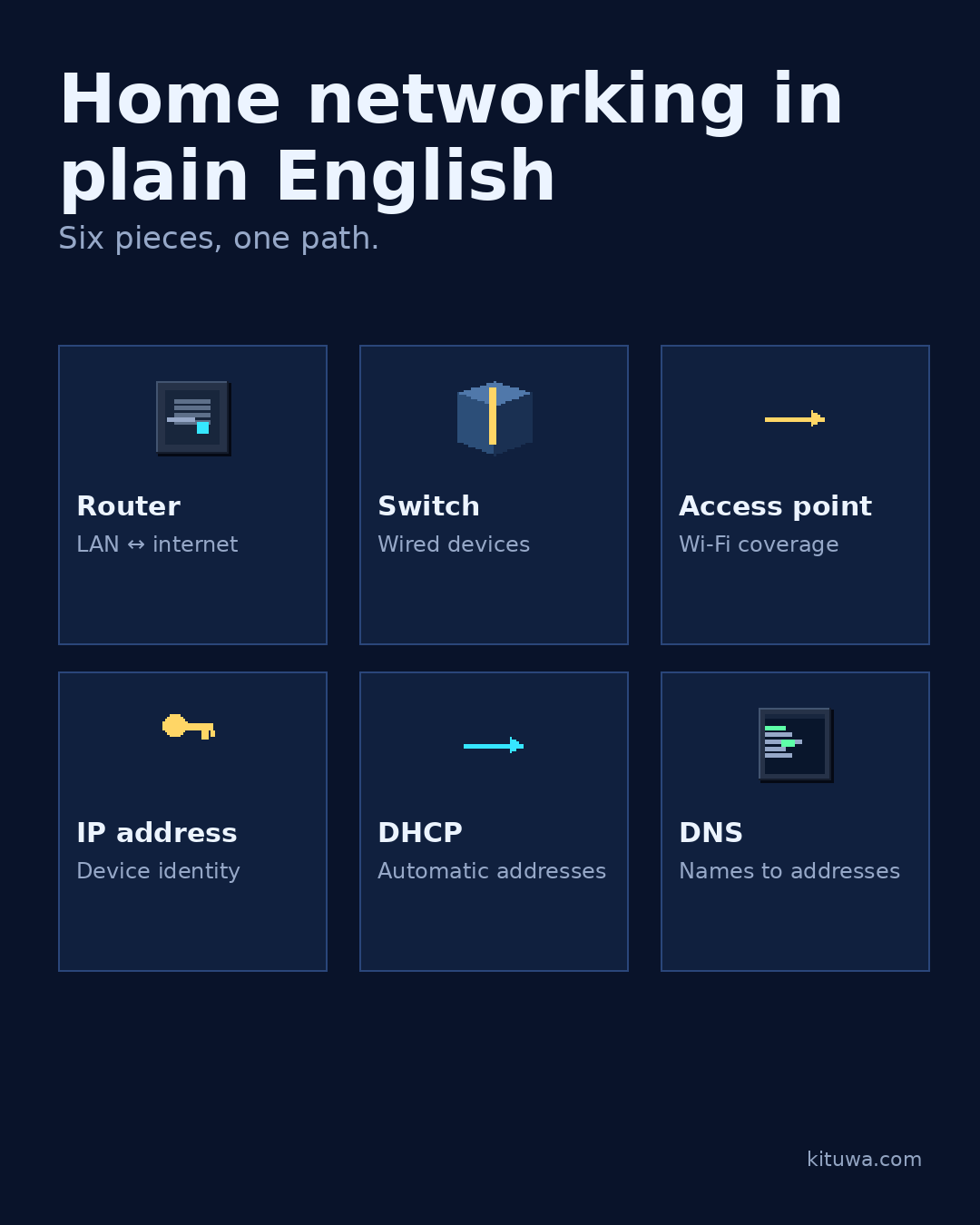
Home networking is easier when you separate six jobs.
This guide expands the Facebook post into a practical workflow for beginners, home-lab users, and small-business owners who want to understand the trade-offs before changing a working system.
What this guide covers
- Home networking in plain English
- Six pieces, one path.
- Router — LAN ↔ internet
- Switch — Wired devices
- Access point — Wi-Fi coverage
- IP address — Device identity
Why it matters
The goal is not to memorize a product name or copy a command blindly. It is to understand what the change affects, verify it against an official reference, test it on spare hardware or a virtual machine when possible, and keep a rollback path.
A practical walkthrough
Check the network path
Router: moves traffic between your network and the internet. Switch: connects wired devices on the same network. Access point: provides Wi-Fi. IP address: identifies a device on the network. DHCP: hands out addresses automatically. DNS: translates names like example.com into addresses.
Check the network path
Those jobs can live in one box or several. A router with built-in Wi-Fi, switch ports, DHCP, and DNS is common. Separating them can improve coverage or control, but it adds configuration.
Check the network path
A simple test: can a device get an address, resolve a name, and reach a local service? Each answer narrows the layer. Document the addresses and roles; future-you will not remember which box does what. Labels on cables and devices help. When something fails, ask which job failed: address, name resolution, local link, Wi-Fi, or internet path. That question saves time.
Your turn
Which piece would you rather keep simple?
What to verify
- Use the official documentation for the exact version you run.
- Test on a spare device or virtual machine before changing a working system.
- Keep a backup and a rollback path.
- Record what changed and how you verified it.
Common mistakes
- Exposing a service before authentication and updates are ready.
- Changing several network variables at once.
- Forgetting DNS, TTL, firewall, or rollback details.
Quick checklist
- ☐ Six pieces, one path.
- ☐ Router — LAN ↔ internet
- ☐ Switch — Wired devices
- ☐ Access point — Wi-Fi coverage
- ☐ IP address — Device identity
- ☐ DHCP — Automatic addresses
FAQ
What is the first step?
Home networking is easier when you separate six jobs.
What should I avoid?
Exposing a service before authentication and updates are ready.
Where can I verify the current details?
Use the official references below; versions and interfaces change.
References
Related guides
- Passkeys, passwords, and authenticator codes
- Wi-Fi slow: run these checks first
- Mesh or Ethernet-backed access points?
Need help?
If you want a second opinion on the setup or the rollback plan, Kituwa can review it with you. Start with the checklist above; it makes the conversation more useful.