Kituwa IT · Field guide
Wi-Fi slow: run these checks first
Wi-Fi slow? Check the simple things before buying new hardware. Practical checks and official references.
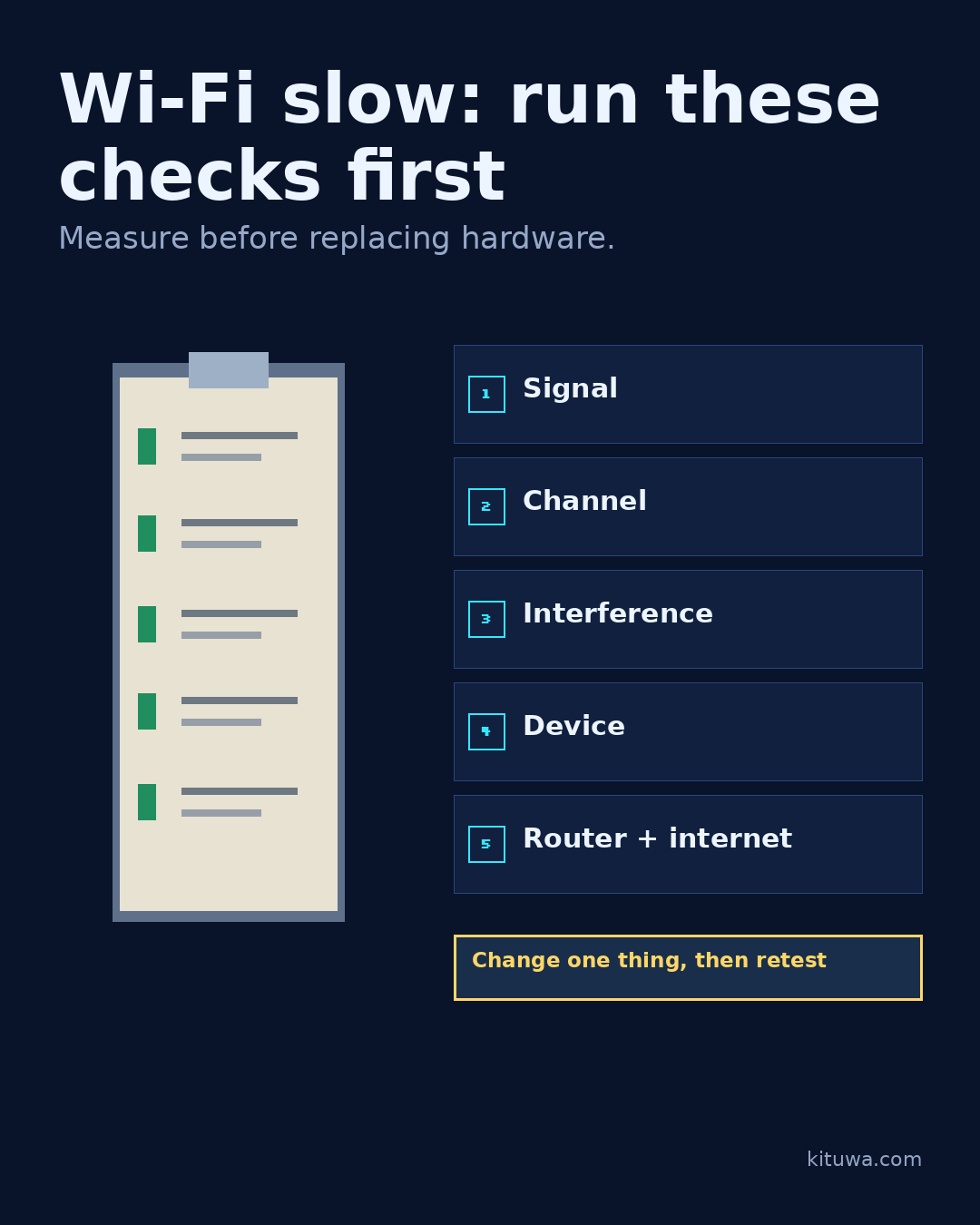
Wi-Fi slow? Check the simple things before buying new hardware.
This guide expands the Facebook post into a practical workflow for beginners, home-lab users, and small-business owners who want to understand the trade-offs before changing a working system.
What this guide covers
- Wi-Fi slow: run these checks first
- Measure before replacing hardware.
- 1 Signal
- 2 Channel
- 3 Interference
- 4 Device
Why it matters
The goal is not to memorize a product name or copy a command blindly. It is to understand what the change affects, verify it against an official reference, test it on spare hardware or a virtual machine when possible, and keep a rollback path.
A practical walkthrough
Check the network path
- Signal: move closer and test again. Walls, floors, and metal matter.
- Channel: a crowded channel can be slower. Use your router's channel scan or a Wi-Fi analyzer.
- Interference: microwaves, cordless phones, and dense neighbors can affect 2.4 GHz.
- Device: test a second device. If only one is slow, the problem may be the device.
- Router and internet: test a wired connection and check the router's CPU/uptime. A reboot is a diagnostic, not a fix.
Check nmcli
Test at the same spot and time of day; Wi-Fi performance changes with neighbors and load. Record the result before and after each change. If only the internet is slow, the local Wi-Fi may be fine. On Linux, nmcli can show connection details, and iw can show link quality if your driver supports it. Results vary by hardware.
Verify the result
Test the change on a spare device or virtual machine first. Check the exact behavior you care about, not just whether the screen looks right. Record what you tested and what you expected.
Your turn
What changed before it got slow?
What to verify
- Use the official documentation for the exact version you run.
- Test on a spare device or virtual machine before changing a working system.
- Keep a backup and a rollback path.
- Record what changed and how you verified it.
Common mistakes
- Exposing a service before authentication and updates are ready.
- Changing several network variables at once.
- Forgetting DNS, TTL, firewall, or rollback details.
Quick checklist
- ☐ Measure before replacing hardware.
- ☐ 1 Signal
- ☐ 2 Channel
- ☐ 3 Interference
- ☐ 4 Device
- ☐ 5 Router + internet
FAQ
What is the first step?
Wi-Fi slow?
What should I avoid?
Exposing a service before authentication and updates are ready.
Where can I verify the current details?
Use the official references below; versions and interfaces change.
References
Related guides
Need help?
If you want a second opinion on the setup or the rollback plan, Kituwa can review it with you. Start with the checklist above; it makes the conversation more useful.