Kituwa IT · Field guide
Practice recovery before you need it
Practice recovery before you need it. Use a spare device or a virtual machine, not your only working computer. Practical checks and official references.
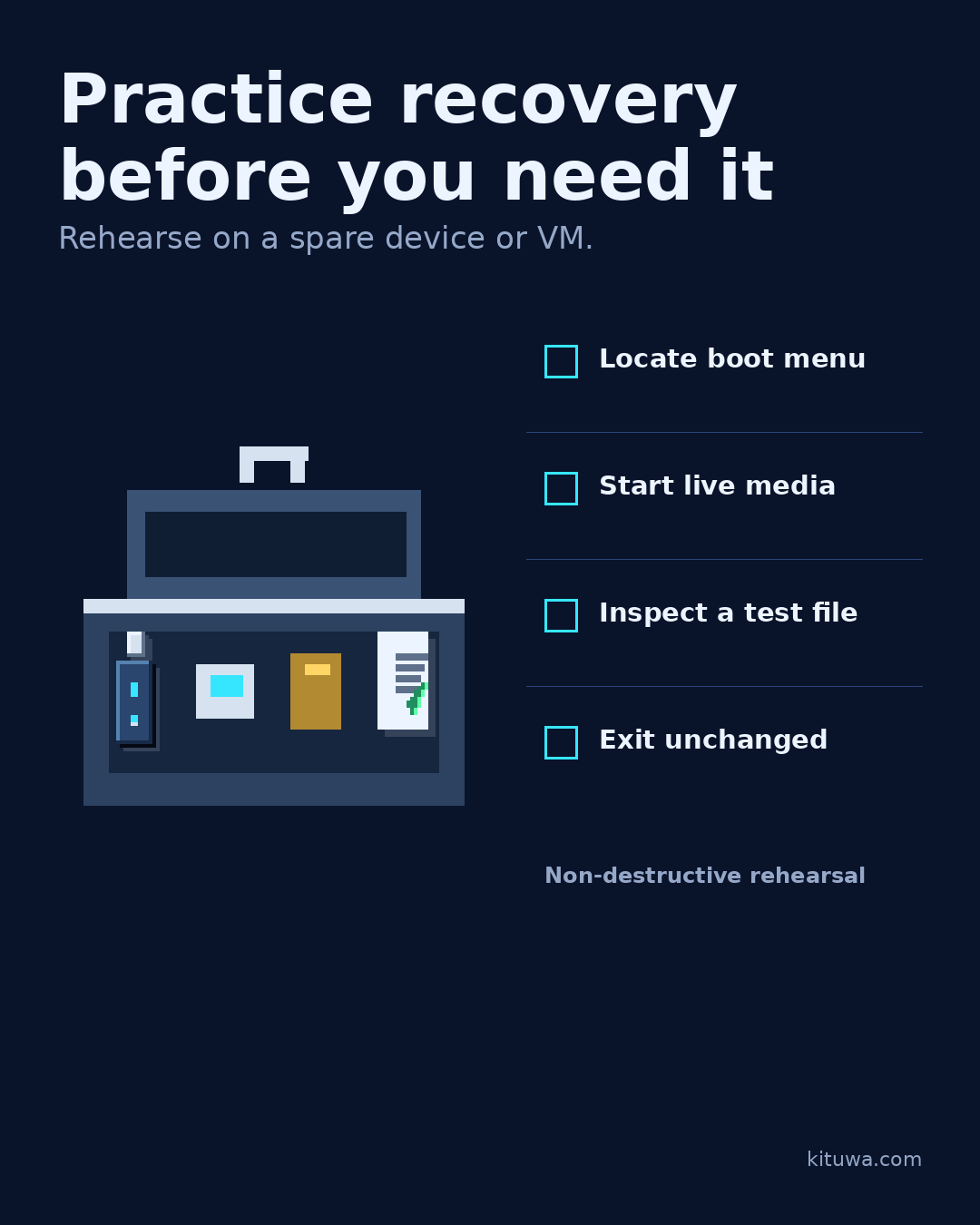
Practice recovery before you need it. Use a spare device or a virtual machine, not your only working computer.
This guide expands the Facebook post into a practical workflow for beginners, home-lab users, and small-business owners who want to understand the trade-offs before changing a working system.
What this guide covers
- Practice recovery before you need it
- Rehearse on a spare device or VM.
- Boot menu key
- Live USB
- Recovery key
- Test file
Why it matters
The goal is not to memorize a product name or copy a command blindly. It is to understand what the change affects, verify it against an official reference, test it on spare hardware or a virtual machine when possible, and keep a rollback path.
A practical walkthrough
Step 1: what to check
Rehearsal checklist:
Verify the key path
- Locate the boot menu key and the firmware setting that selects USB.
- Start a live USB and confirm it reaches the desktop.
- Mount or open a test file from a spare drive, read-only if possible.
- Exit, reboot, and confirm the internal system is unchanged.
Make recovery practical
If the disk is encrypted, you may need the recovery key or passphrase. Confirm you have it before an emergency.
Protect the data first
Write down the boot-menu key for each machine you support, and keep the live USB somewhere you can find it. A recovery rehearsal is not a backup test, but it removes the first five minutes of panic when a real failure happens.
Step 5: what to check
Do not modify partitions, bypass access controls, or test on data you cannot lose. The goal is familiarity with the path: boot menu → live media → inspect → exit.
Your turn
When did you last practice a recovery?
What to verify
- Use the official documentation for the exact version you run.
- Test on a spare device or virtual machine before changing a working system.
- Keep a backup and a rollback path.
- Record what changed and how you verified it.
Common mistakes
- Changing more than one thing at a time.
- Skipping the official documentation for your version.
- Assuming a warning means you should delete or reset data.
- Not recording what you changed or how you verified it.
Quick checklist
- ☐ Rehearse on a spare device or VM.
- ☐ Boot menu key
- ☐ Live USB
- ☐ Recovery key
- ☐ Test file
- ☐ 1 Locate boot menu
FAQ
What is the first step?
Practice recovery before you need it.
What should I avoid?
Changing more than one thing at a time.
Where can I verify the current details?
Use the official references below; versions and interfaces change.
References
Related guides
Need help?
If you want a second opinion on the setup or the rollback plan, Kituwa can review it with you. Start with the checklist above; it makes the conversation more useful.