Kituwa IT · Field guide
The app you wish had a Linux version
Which app keeps you on Windows or macOS? Name the app and the one feature you actually rely on, not the whole suite. Practical checks and official references.
Which app keeps you on Windows or macOS?
This guide expands the Facebook post into a practical workflow for beginners, home-lab users, and small-business owners who want to understand the trade-offs before changing a working system.
What this guide covers
- The app you wish had a Linux version
- Name the feature, not the whole suite.
- Native alternative — Different app, same job
- Browser version — Vendor-supported web app
- Compatibility tool — Wine, Proton, CrossOver
- Keep another OS — Dual boot, VM, spare PC
Why it matters
The goal is not to memorize a product name or copy a command blindly. It is to understand what the change affects, verify it against an official reference, test it on spare hardware or a virtual machine when possible, and keep a rollback path.
A practical walkthrough
Step 1: what to check
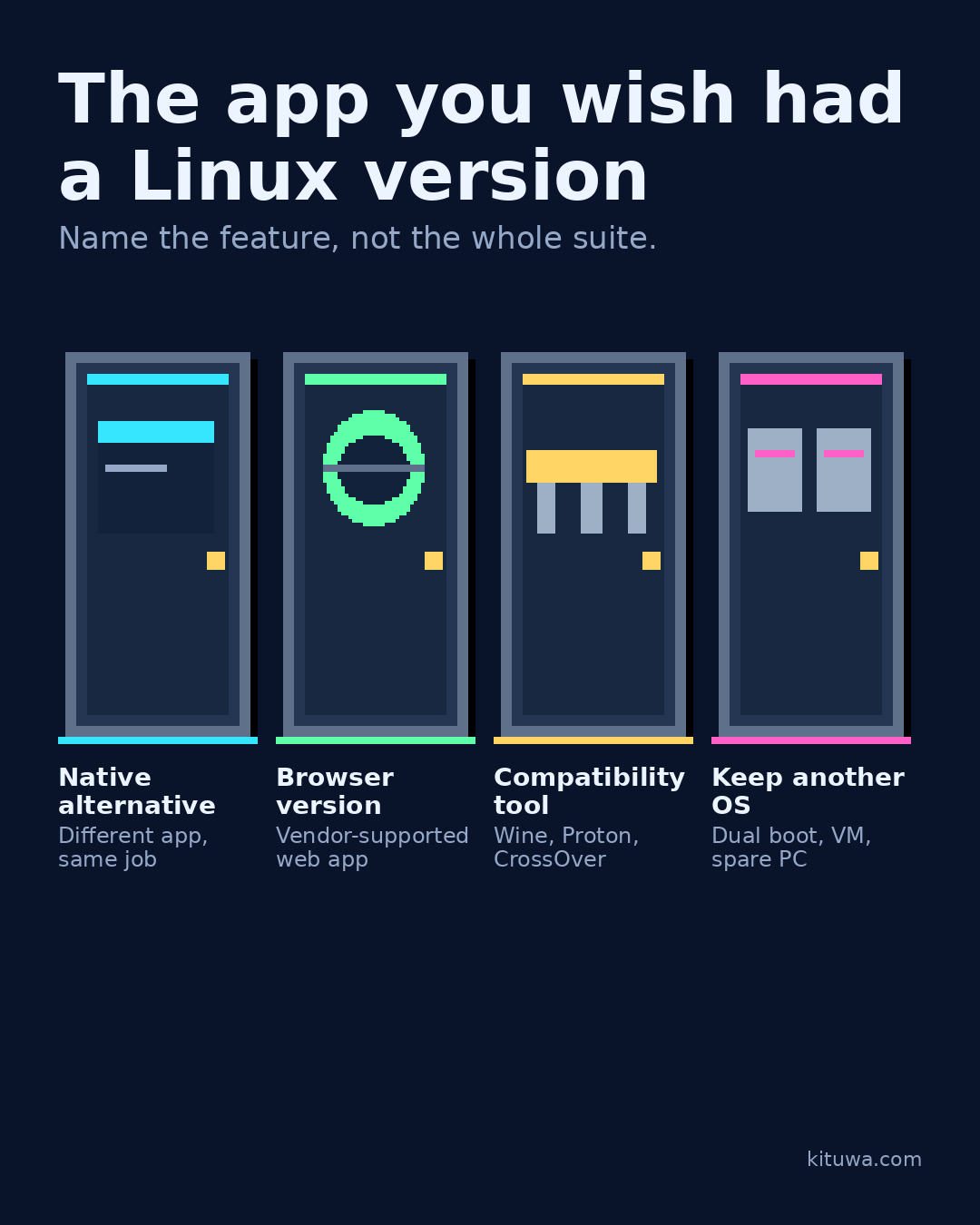
Name the app and the one feature you actually rely on, not the whole suite. Then consider four paths:
Step 2: what to check
- Native alternative: a different app that does the same job.
- Browser version: works if the vendor supports your browser and the feature set fits.
- Compatibility tool: Wine, Proton, or CrossOver can run some Windows software, but support varies by app and version.
- Keep another OS: a dual boot, virtual machine, or spare computer when the app is non-negotiable.
Step 3: what to check
None of these promises feature parity. Test the exact workflow, file formats, plugins, and peripherals before switching.
Your turn
What is the app, and which feature matters most?
What to verify
- Use the official documentation for the exact version you run.
- Test on a spare device or virtual machine before changing a working system.
- Keep a backup and a rollback path.
- Record what changed and how you verified it.
Common mistakes
- Changing more than one thing at a time.
- Skipping the official documentation for your version.
- Assuming a warning means you should delete or reset data.
- Not recording what you changed or how you verified it.
Quick checklist
- ☐ Name the feature, not the whole suite.
- ☐ Native alternative — Different app, same job
- ☐ Browser version — Vendor-supported web app
- ☐ Compatibility tool — Wine, Proton, CrossOver
- ☐ Keep another OS — Dual boot, VM, spare PC
FAQ
What is the first step?
Which app keeps you on Windows or macOS?
What should I avoid?
Changing more than one thing at a time.
Where can I verify the current details?
Use the official references below; versions and interfaces change.
References
Related guides
- Find what is filling your disk
- Mint vs Arch without the arguments
- Before you paste a terminal command
Need help?
If you want a second opinion on the setup or the rollback plan, Kituwa can review it with you. Start with the checklist above; it makes the conversation more useful.